

Window Placer - automate to placing windows in your project

Window Placer
8 USD
Buy item
One-time charge, lifetime license, 2 seats
This script is used for quick placement of windows in 3Ds Max scene.
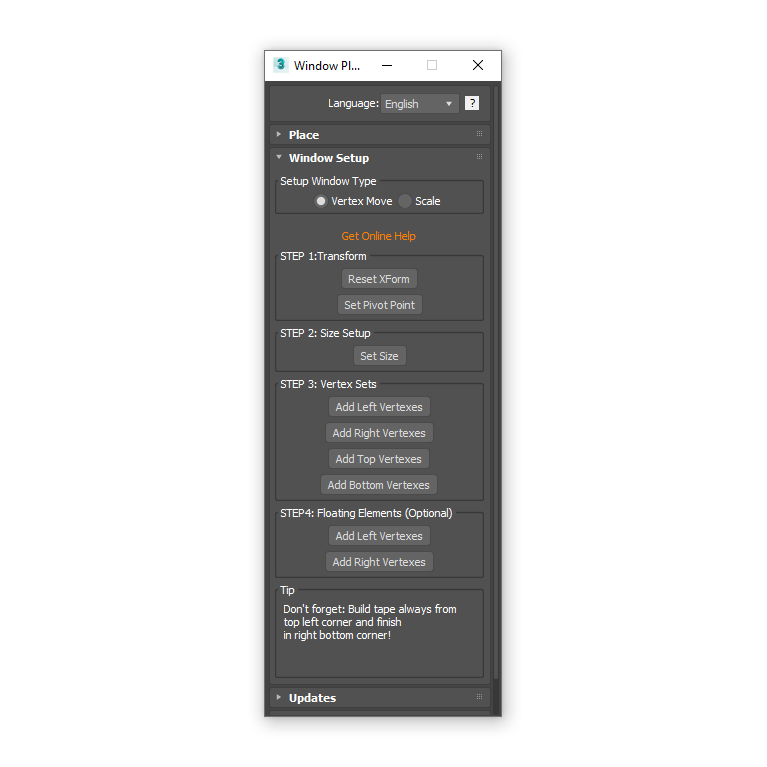
Before using the script requires preset the windows.
Before using the script requires preset the windows.
1.3.9 Version
Jun, 8 Updated
Shareware License
English, Russian, Ukrainian, Polish, Vietnamese, Turkish Languages
Autodesk 3Ds Max 2012 Min. requirements
This script is used for quick placement of windows in 3Ds Max scene.
Before using the script requires preset the windows.
Read more in the Full Manual.
Features:
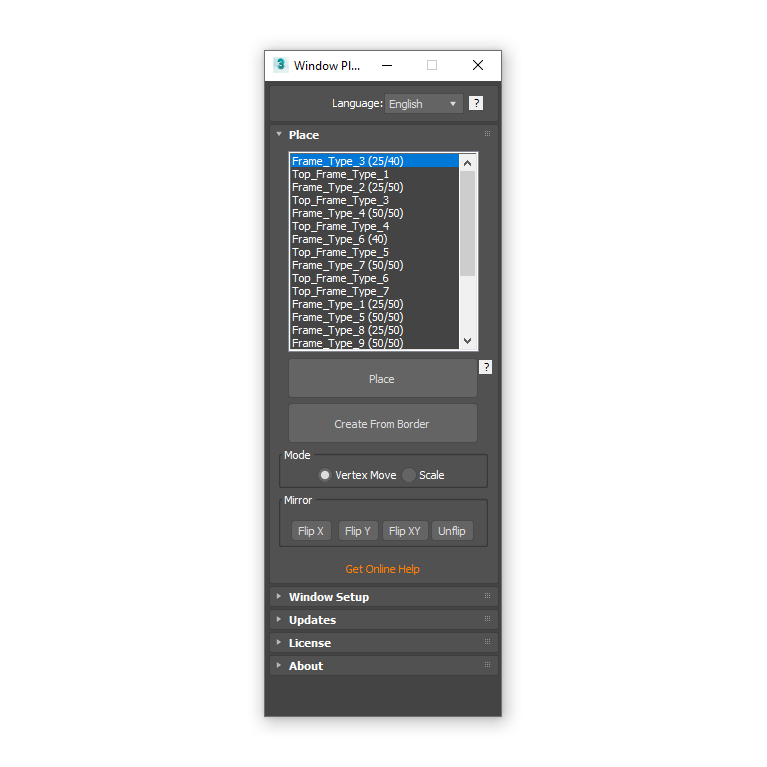
- Windows list
- Placement the windows with snap
- Automatic placement
- Flip by local axis (X, Y, Z)
- Tool for windows settings
Example configured windows (tnx for Suhiro)
EXAMPLE WINDOWS (2014)ROOM EXAMPLE (2019)
No one has posted a comment yet
{{key}} {{value[0].date}}
-
{{v.text}}
Sorry. Nothing found...
{{key}}
- {{v.text}}
FAQ
1. What is Window Placer?
Window Placer is a tool for Autodesk 3ds Max that allows you to quickly and accurately place windows in architectural projects. The script helps automate repetitive tasks and significantly speeds up the modeling process.
2. What is Window Placer used for?
The script is designed to quickly place pre-configured windows into wall openings. It is especially useful for large architectural projects containing dozens or even hundreds of similar windows.
3. How does Window Placer work?
A window needs to be configured only once. After that, it can be inserted into different projects repeatedly using either manual or automatic placement modes.
4. Can I create my own window library?
Yes. Configured windows can be saved into a separate MAX file and reused in future projects, allowing you to build your own library of standard window types.
5. What placement methods does the script support?
Window Placer supports both manual placement (Place) and automatic window creation from openings (Create From Border).
6. What is the Place mode?
In Place mode, a window is manually inserted into a selected opening using snapping tools. This method is ideal when you need full control over the placement of each individual window.
7. What is the Create From Border mode?
This mode automatically inserts windows into building openings based on selected open borders or contours. It can dramatically speed up work on large architectural models.
8. Is Window Placer suitable for large residential complexes and multi-story buildings?
Yes. The script was specifically designed for projects where manually placing large numbers of windows becomes a time-consuming and repetitive task.
9. Can windows be mirrored during placement?
Yes. The script supports mirroring along local X, Y, and Z axes, allowing a single window model to be used in different situations.
10. What is the Scale mode?
Scale mode allows windows to be inserted by scaling them to fit the opening size. This mode is particularly useful when preparing projects for Unreal Engine.
11. Can Window Placer help avoid window placement mistakes?
Yes. The script helps eliminate common manual placement issues such as gaps between windows and walls, incorrect positioning, and orientation errors.
12. Do I need to configure windows every time?
No. Once a window has been configured, it can be saved to a library and reused in any future project.
13. Is Window Placer suitable for architectural visualization?
Yes. The script is designed for architectural visualization professionals working on residential, commercial, and public building projects.
14. Does Window Placer support the latest versions of Autodesk 3ds Max?
Yes. The script is regularly updated and supports modern versions of Autodesk 3ds Max.
15. Is Window Placer easy to learn?
Yes. After the initial window setup, placing windows becomes a very simple process that takes only a few clicks.
16. What is included with the Window Placer license?
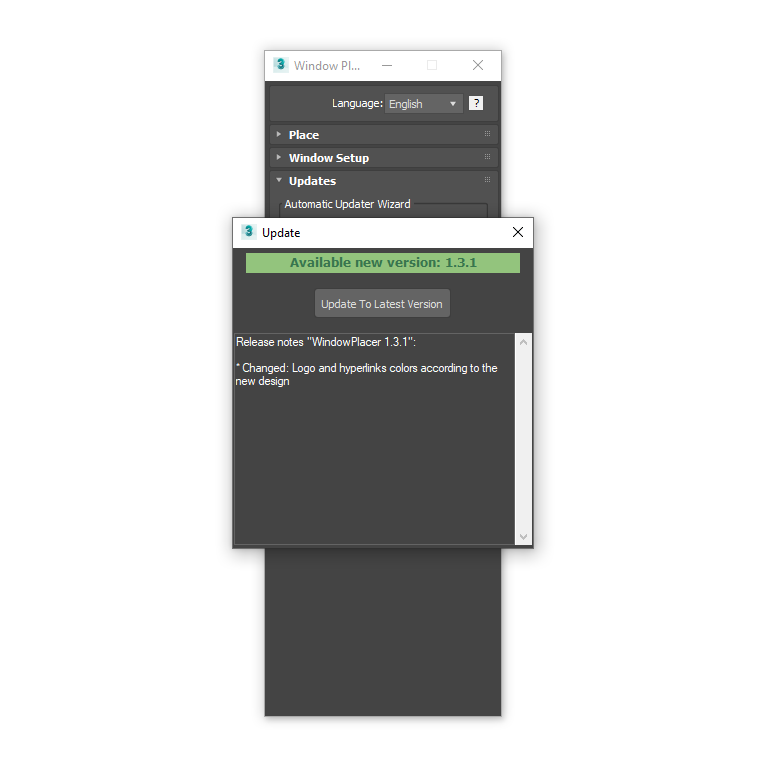
The license provides access to all script features, lifetime updates, new functionality, one-click over-the-air updates, and technical support from the developer. The license can be activated on up to two computers simultaneously.
Sponsored content


© 3D GROUND. All rights reserved 2026.
Site build 34.
{{comment.text}}