

3ds Max Notifications - Render Alerts for Telegram, Discord, Slack and Teams


3ds Max Notifications
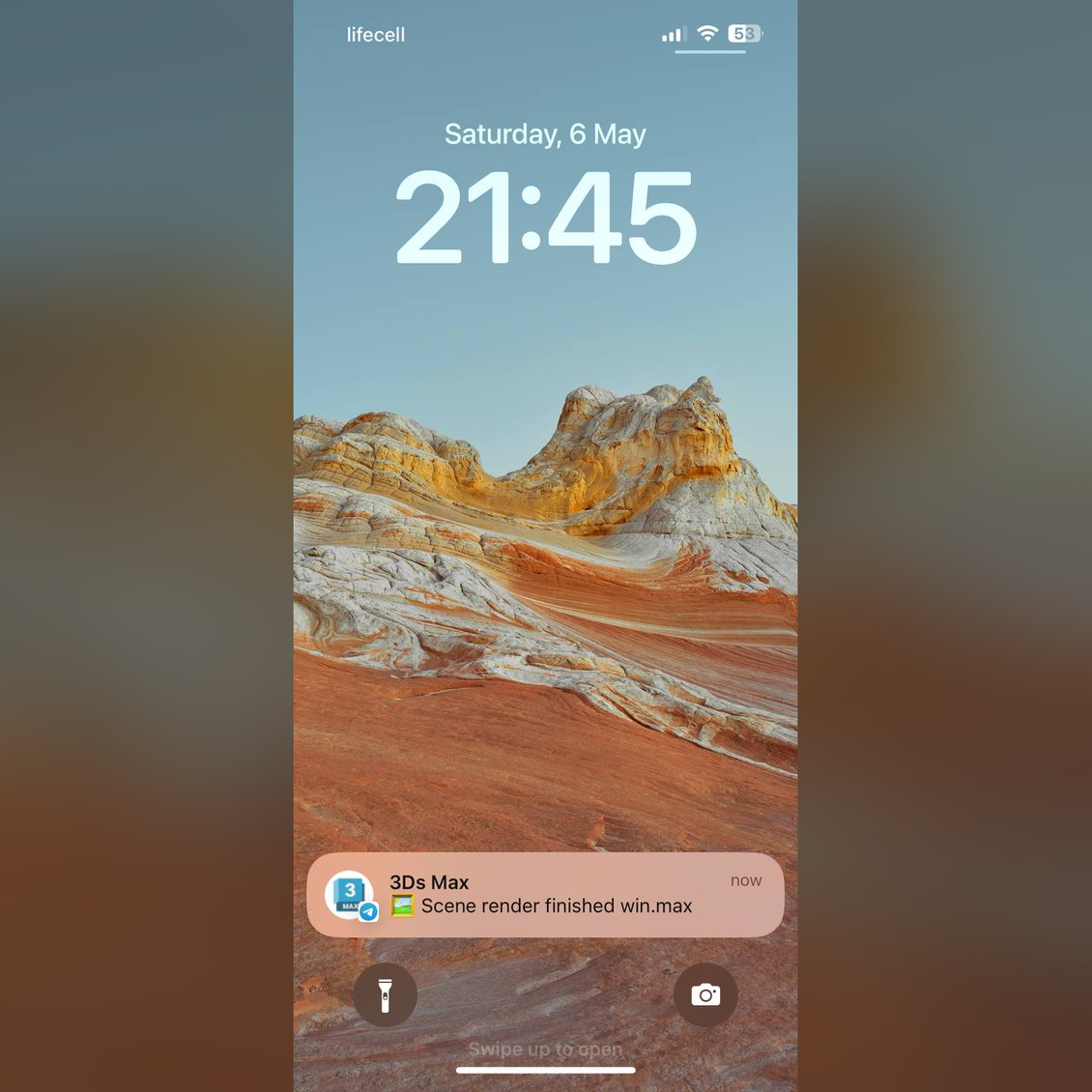
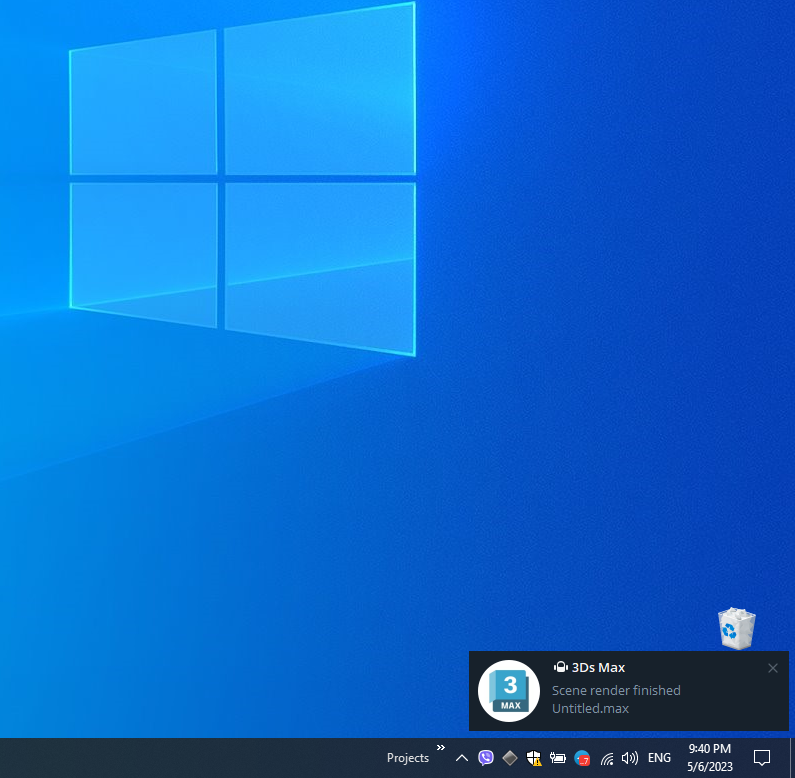
3ds Max Notifications helps you stay informed when a render is finished, failed, or requires your attention. The script can send a message with render details and optionally attach the latest rendered image, so you can check the result without staying near your workstation.
It is especially useful when you leave a long render running, step away from the computer, take a break, or render overnight.
A simple and convenient notification system for 3Ds Max that sends messages about render progress and completion to Telegram, Discord, Slack, Microsoft Teams, or Google Chat.
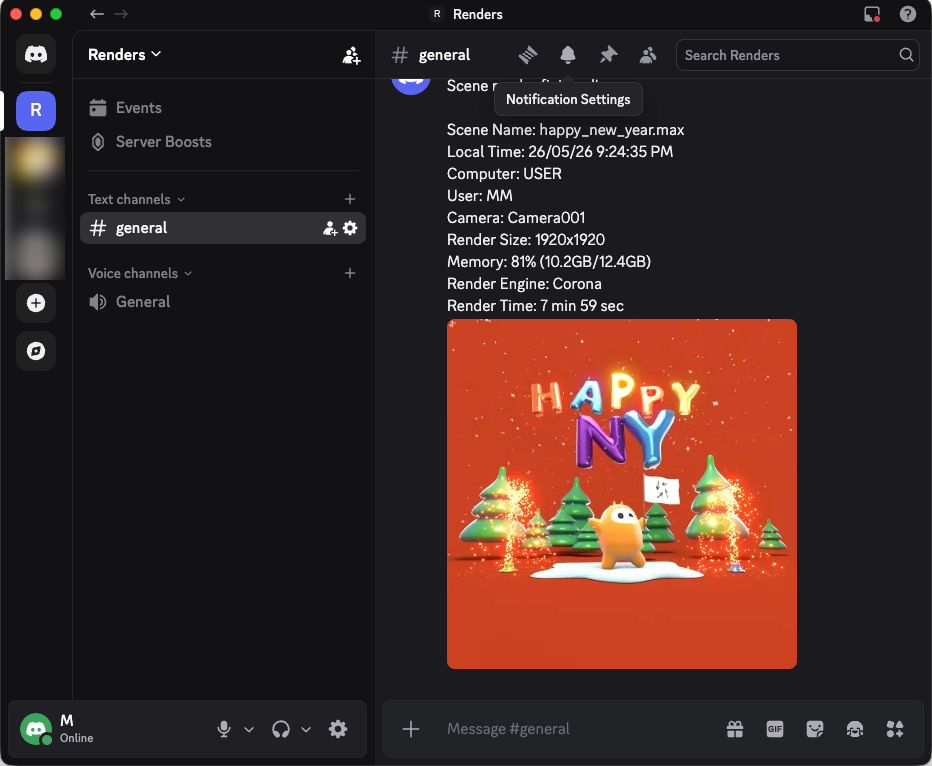
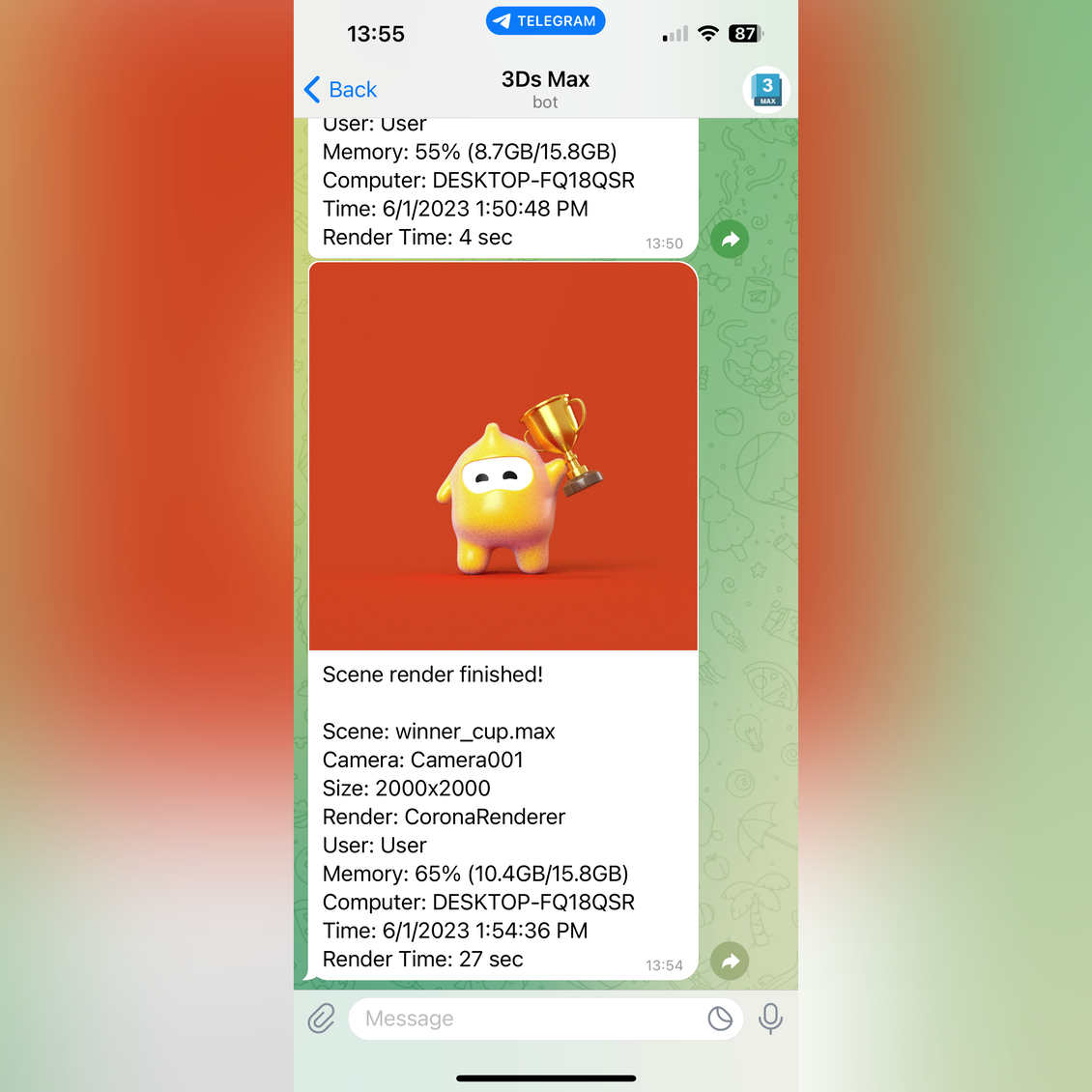
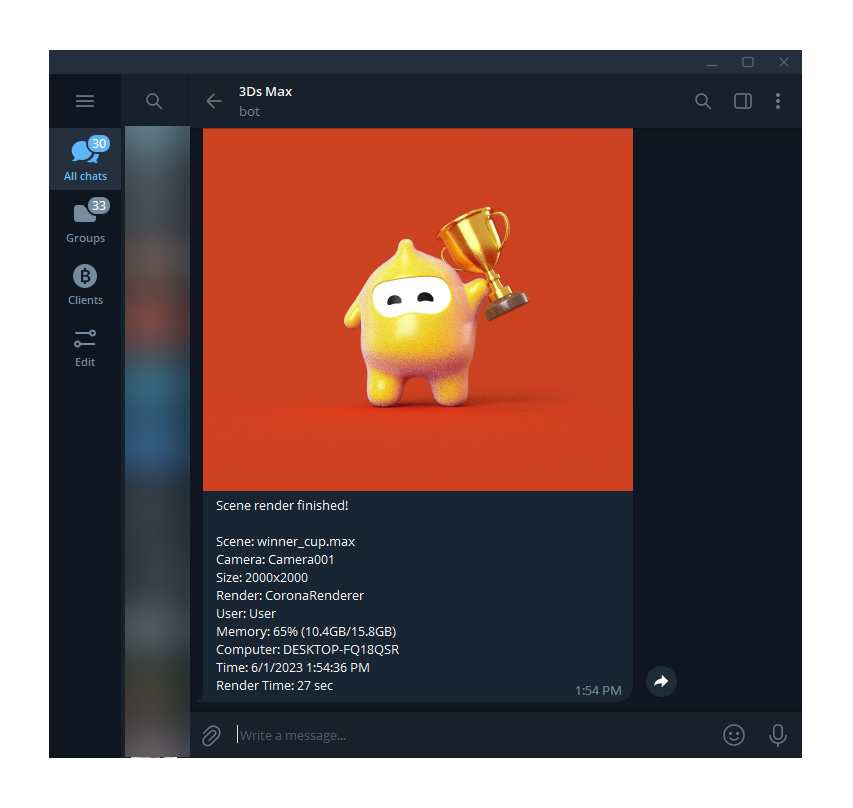
Notifications are sent automatically after rendering and can include the scene name, render time, computer name, render engine, memory usage, and the final render image.
Important!
Telegram Notifications script is no longer supported, now it's 3Ds Max Notifications! All purchased licenses will also work for 3Ds Max Notifications!
Description
3Ds Max Notifications is a lightweight script that lets you receive important render updates from Autodesk 3Ds Max in your messenger.
You can configure where notifications should be sent, customize the message text, attach the latest render, and control when notifications are triggered. The script works quietly in the background and can start automatically with 3Ds Max, so you do not need to open the settings window every time.
This is a practical tool for artists, visualization studios, freelancers, and anyone who often runs long renders and wants to monitor them remotely.
Features
- Send render notifications from 3Ds Max
- Support for Telegram, Discord, Slack, Microsoft Teams, and Google Chat
- Attach the latest rendered image to a message
- Custom message templates
- Insert scene name, render time, local time, computer name, camera, render size, memory usage, and render engine
- Set the minimum render time required before sending a notification
- Enable or disable notifications from the 3Ds Max interface
- Auto start with 3Ds Max
- Works without keeping the settings window open
- Improved Corona Renderer support
- API for sending notifications from other scripts
- Multi-language interface
- Lifetime updates
Use Cases
3Ds Max Notifications is useful whenever you need to leave your workstation while rendering.
You can start a render, go for coffee, switch to another task, leave the office, or let the render run overnight. When the render is complete, the script sends a notification to your messenger. If image attachment is enabled, you can immediately preview the result and decide whether everything looks correct.
How To Install
Download 3Ds Max Notifications and drag the MaxNotifications.mzp file into the 3Ds Max viewport.
You can also install it from the menu:
Scripting → Run Script, then select the MaxNotifications.mzp file.
After installation, follow the setup instructions and choose the messenger you want to use.
Usage Features
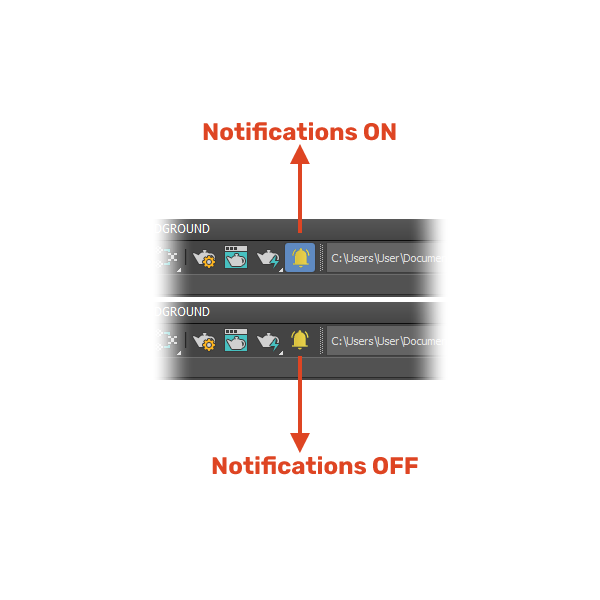
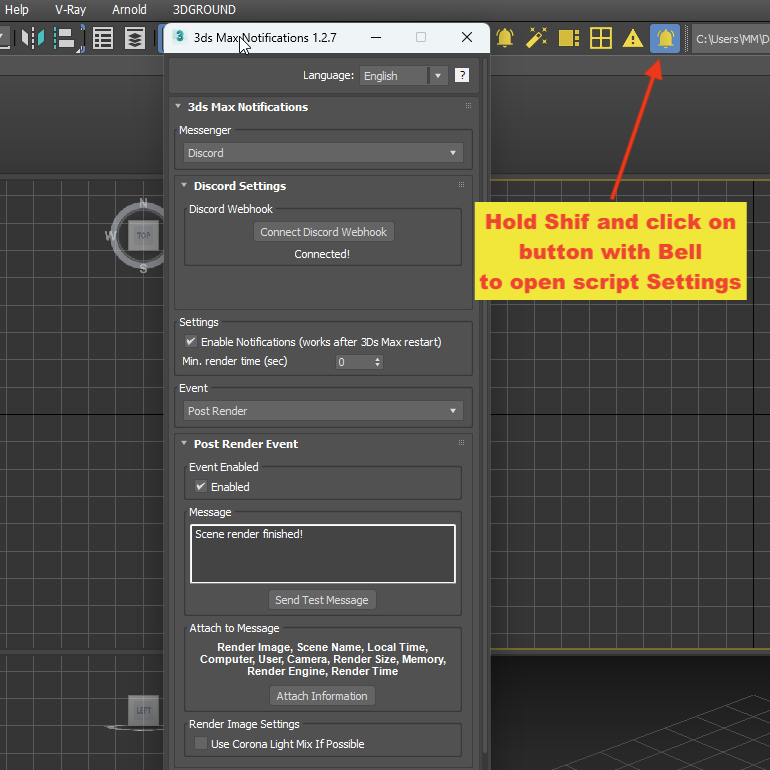
Click the bell icon to enable or disable notifications.

Hold Shift and click the bell icon to open the settings window.

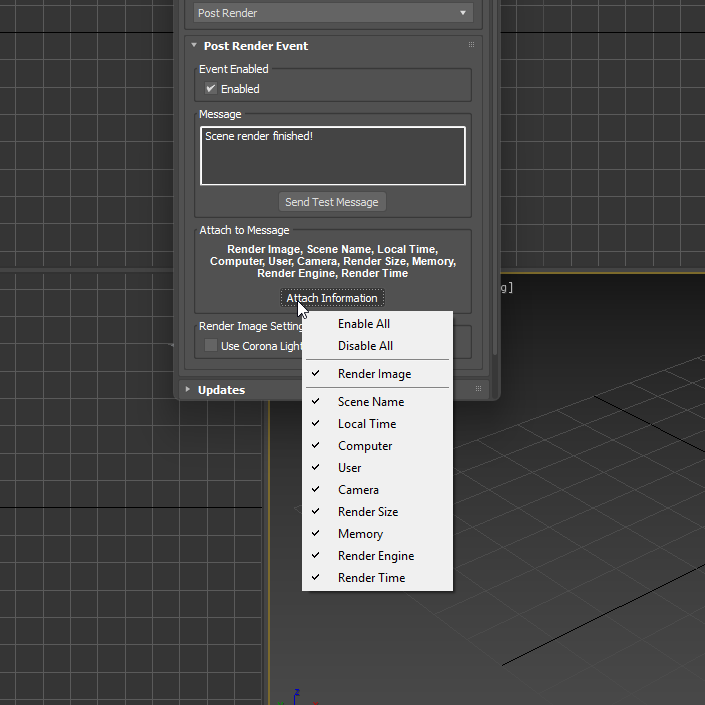
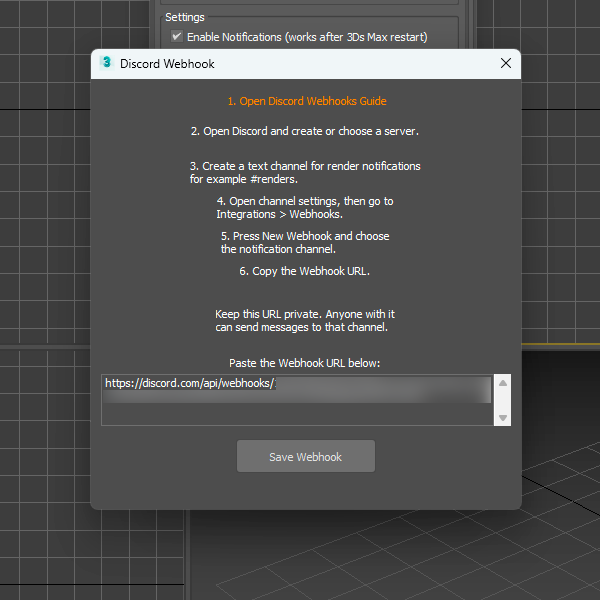
In the settings, choose your messenger and configure the connection. Depending on the selected service, you can connect a Telegram bot or paste a webhook URL for Discord, Slack, Microsoft Teams, or Google Chat.
You can also customize the notification message using templates:
- Render Image - to insert an image of the last render
- Scene Name - scene name
- Local Time - exact local time of the computer
- Computer - computer name
- Computer - computer name
- User - OS username
- Camera - active camera name (example: Camera_001)
- Render Size - render size (example: 1024x640)
- Memory - memory information (example: 68% (10.9GB/15.8GB))
- Render Engine - render engine name (example: CoronaRenderer)
- Render Time - time spent rendering the image
API
3Ds Max Notifications includes an API that allows other scripts to send notifications.
-- Send photo with caption
api.sendPhoto "My finished render" @"C:/Users/User/Desktop/LivingRoom.jpg"
-- Send default message
api.sendMessage "Hello world"
License
You can use one license key on up to 2 computers, for example Home and Work.
Your license is permanent and includes lifetime updates.
{{key}} {{value[0].date}}
-
{{v.text}}
{{key}}
- {{v.text}}
FAQ
1. What is 3ds Max Notifications?
2. What is 3ds Max Notifications used for?
3. Can I receive images along with notifications?
4. Does 3ds Max Notifications work with Render Farms?
5. Do I need to install additional servers or services?
6. Is my data transmitted through 3D GROUND servers?
7. Can multiple computers send notifications to the same channel?
8. Is it difficult to configure notifications?
9. Can I receive notifications during overnight rendering?
10. Is 3ds Max Notifications suitable for studio environments?
11. Can I use 3ds Max Notifications with Corona Renderer and V-Ray?
12. Does the script affect rendering performance?
13. Do I need to keep Telegram, Discord, Slack, or another messaging app open?
14. Does 3ds Max Notifications support the latest versions of Autodesk 3ds Max?
15. What is included with the 3ds Max Notifications license?


{{comment.text}}