

MaxPkg for 3ds Max: Find and Install Scripts



You downloaded a handy script for 3ds Max and dragged the file into the program window. Silence. Did it even install? Where are you supposed to look for the button now? The author has one in their video, but you don’t. You wanted to save time, and now you’re trying to figure out how to get it to run.
With one tool, you can figure it out once and forget about it. With dozens, you end up memorizing a whole set of rules: this one runs from a file, that one hides somewhere in the interface settings, and the third needs its own installer. I want to make this part of the job easier. That’s why MaxPkg ties the whole path together: find a script, install it, use it, update it. And if you write tools yourself, prepare them for release and share them with others.
Why Your “Useful Scripts” Folder Stops Helping Over Time
Scripts for 3ds Max live on ScriptSpot, authors’ websites, forums and GitHub. One developer uploads a single .ms, .mse, .mcr or .py file. Another ships an archive with libraries, icons and instructions. And when someone does build an installer, each one works and looks different. For the author that’s convenient: upload it as is, done. The user, meanwhile, has to figure out every time what exactly they downloaded and how to deal with it.
That’s why 3D artists often build their own stash on disk. And I get it: hunting down the same tool again is a pain, and an old link may no longer work. On ScriptSpot it’s a familiar story: the description is still there, the script looks useful, but there’s nowhere left to download it from. At least your saved copy stays with you.
Then a different kind of mess begins. Is this archive already installed? Which of the two copies is newer? What does that file with a name that rings no bells actually do? The folder keeps the tools themselves, but it doesn’t help you track versions, remember how to launch things or look for updates. All of that is still on you.
Download, Install, Run: Three Different Tasks
A good example is a MacroScript in an .mcr file. After you run it, the command may register without any window or message. If the author didn’t mention the category, you have to open the file in a text editor and look for its name in the code. Then go to the interface settings and add a button. For a developer, that’s a familiar routine. For an artist who just wanted to fix a model, it turns into a whole quest.
Now add inexperienced developers who put MacroScript code into a .ms file and save a regular script as .mcr. At that point the file extension tells you nothing about what to expect, and the chaos is complete.
With a regular .ms file it should be simple: drag the file in, a window opens, you do your work. But tomorrow you need the same tool again, and you’re back in the folder. For a one-off run that’s perfectly fine. For something you do every day, you want a button that’s always within reach.
When a script consists of several files, new questions come up: where to put them, what to replace during an update and what to clean up when removing it. Neatly written code doesn’t answer any of that. And most of the hassle usually comes not from what the script does, but from everything around it.
How MaxPkg Brings It All Together
MaxPkg has three connected parts. The catalog on the website helps you find a tool and figure out whether you need it. MaxPkg Manager runs inside 3ds Max: it installs packages and lets you manage them. The third part, Packager, is for developers who want to prepare their script for this system. Users only need the first two; I’ll come back to Packager a bit later.
Don’t let the word “package” scare you. It’s just a prepared .mzp archive: inside are the tool itself, the files it needs and the information required for installation. For example, the name, version, launch commands and compatibility. Thanks to this data, the manager knows what you’re installing and how to handle it afterwards.
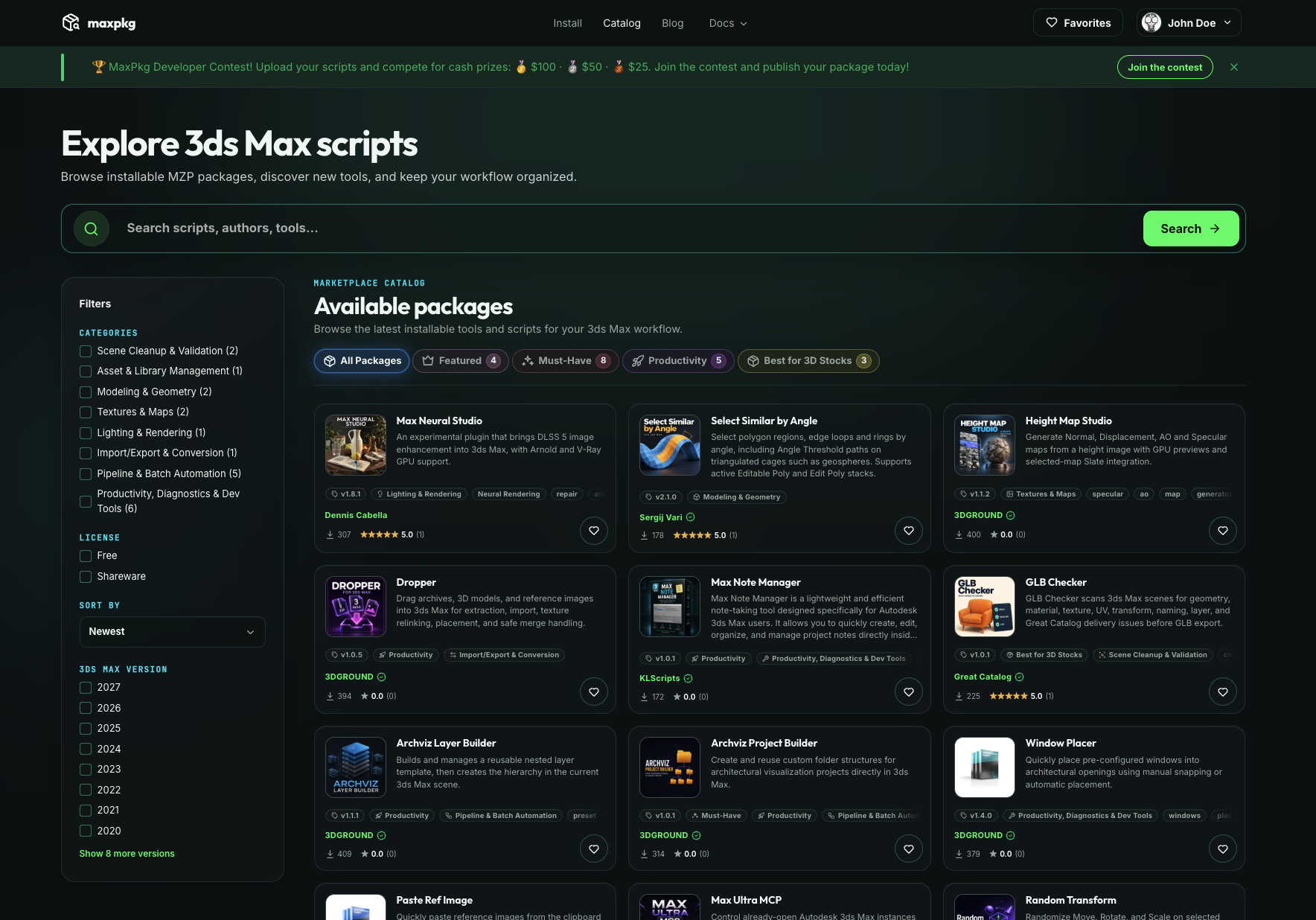
In the catalog you can search by name and filter by category, license and 3ds Max version. That alone weeds out some of the options that won’t fit. And the package page brings together the description, screenshots, videos, version history and the author’s links, if those materials have been added.
What to Check Before Installing
Start with the simple stuff: does the tool solve my problem, and does it play nice with my version of 3ds Max? MaxPkg Manager is free, and so are most packages. You don’t need to register for everything: the catalog and public packages are available without an account. You’ll need one for favorites, reviews, bug reports or publishing your own tools.
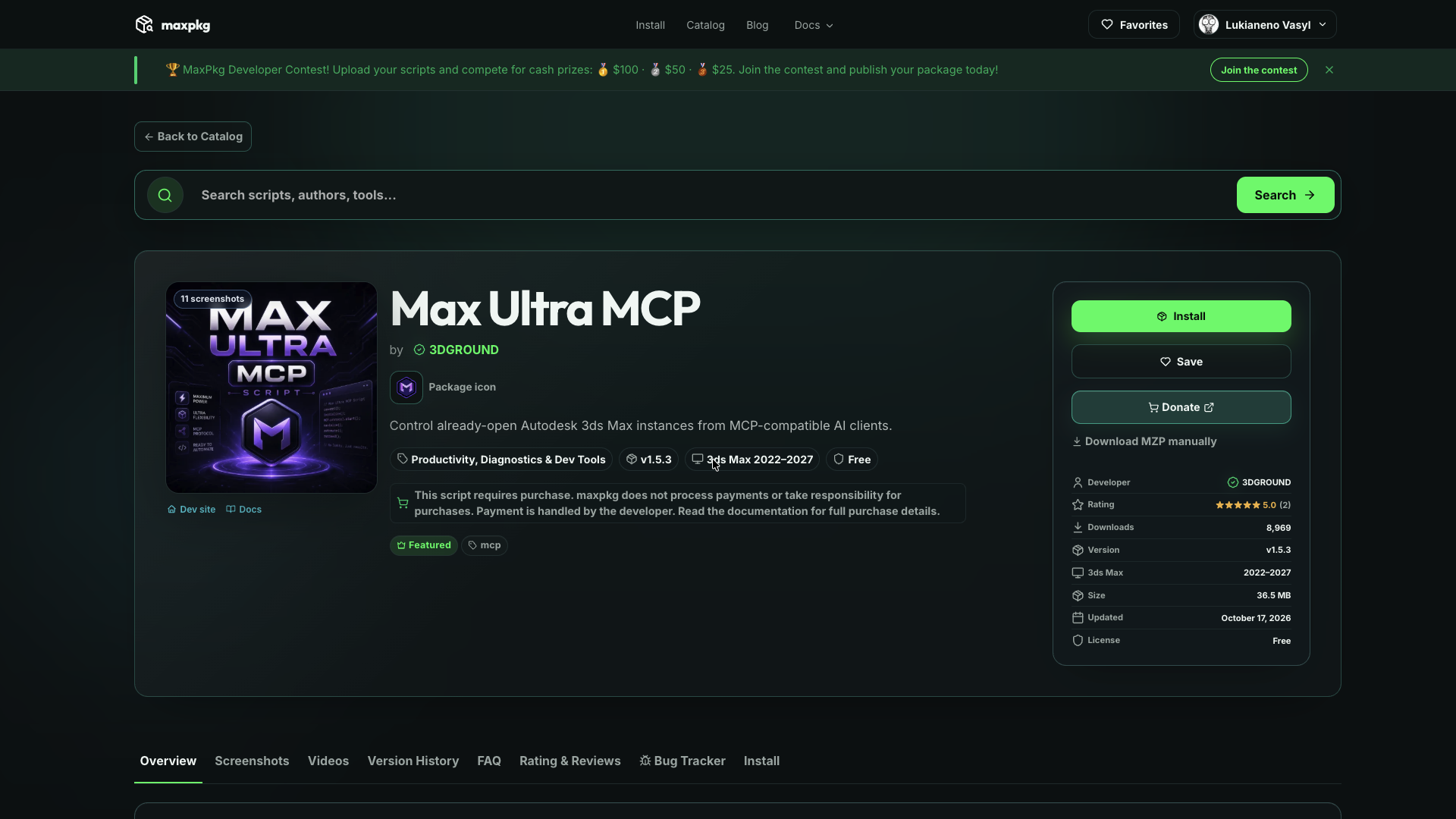
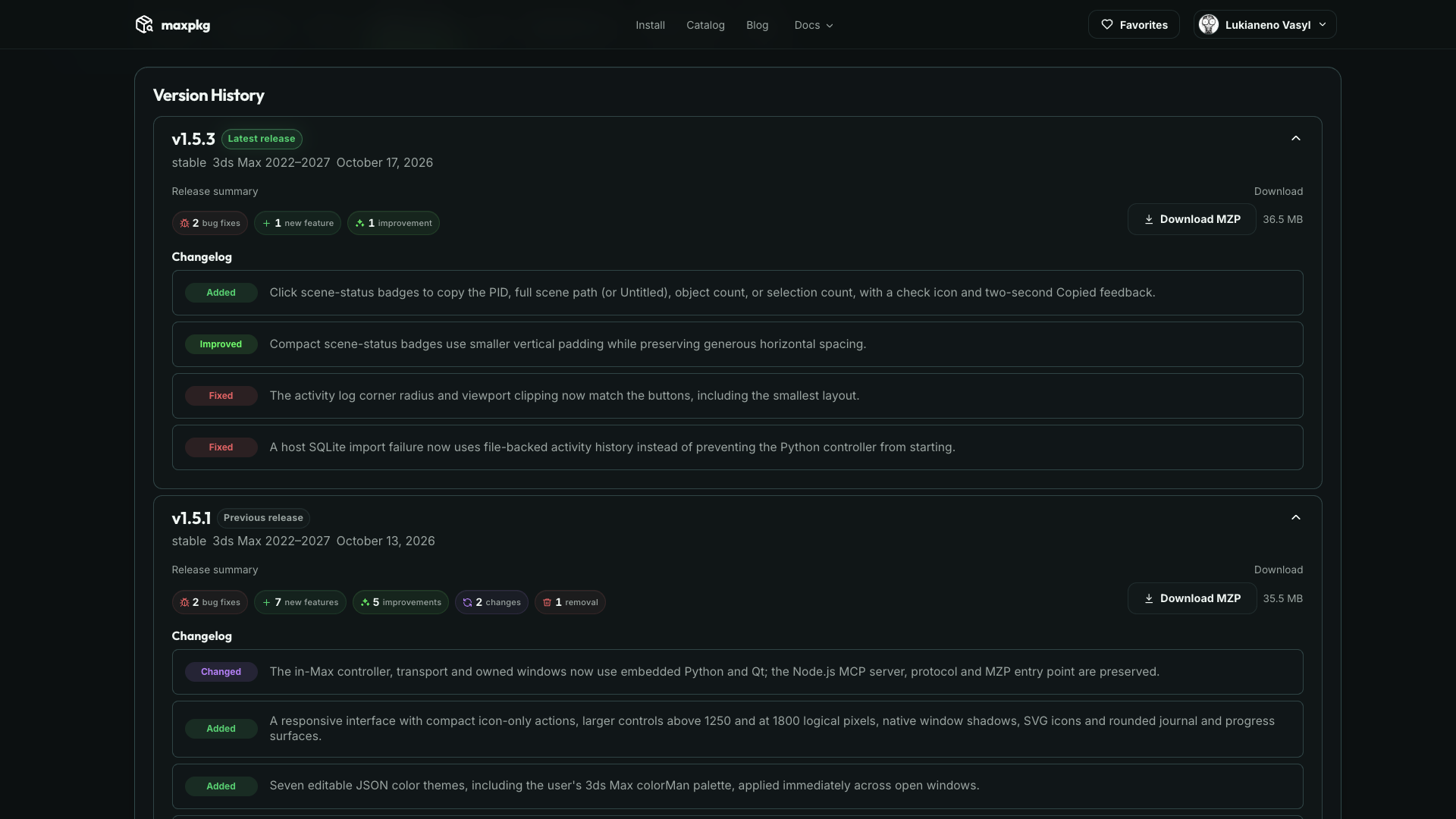
It’s worth checking Version History. The changelog shows what’s new in a release and which bugs were fixed. For example, on the Max Ultra MCP page the gallery, videos and version history sit right next to each other. No more digging through comments under an old post to figure out yet another archive.
What You Can Get Done Right Now
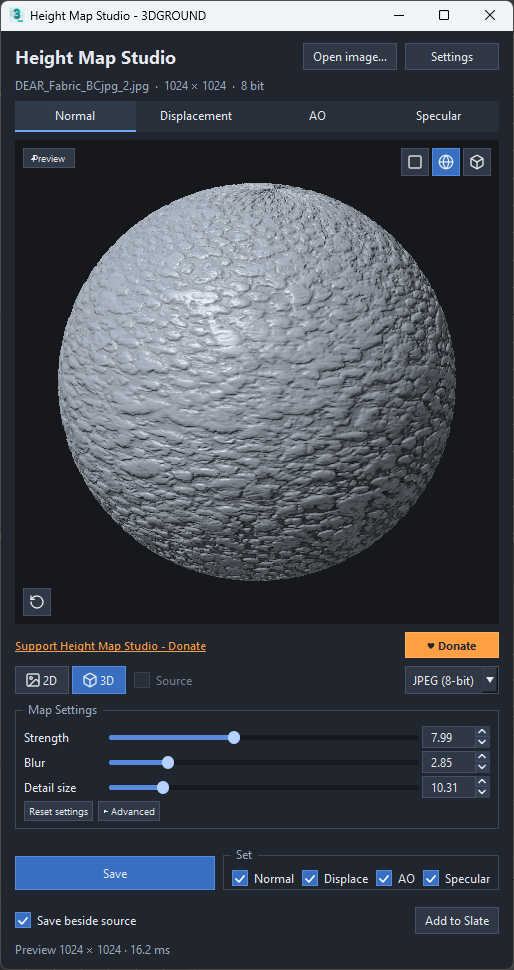
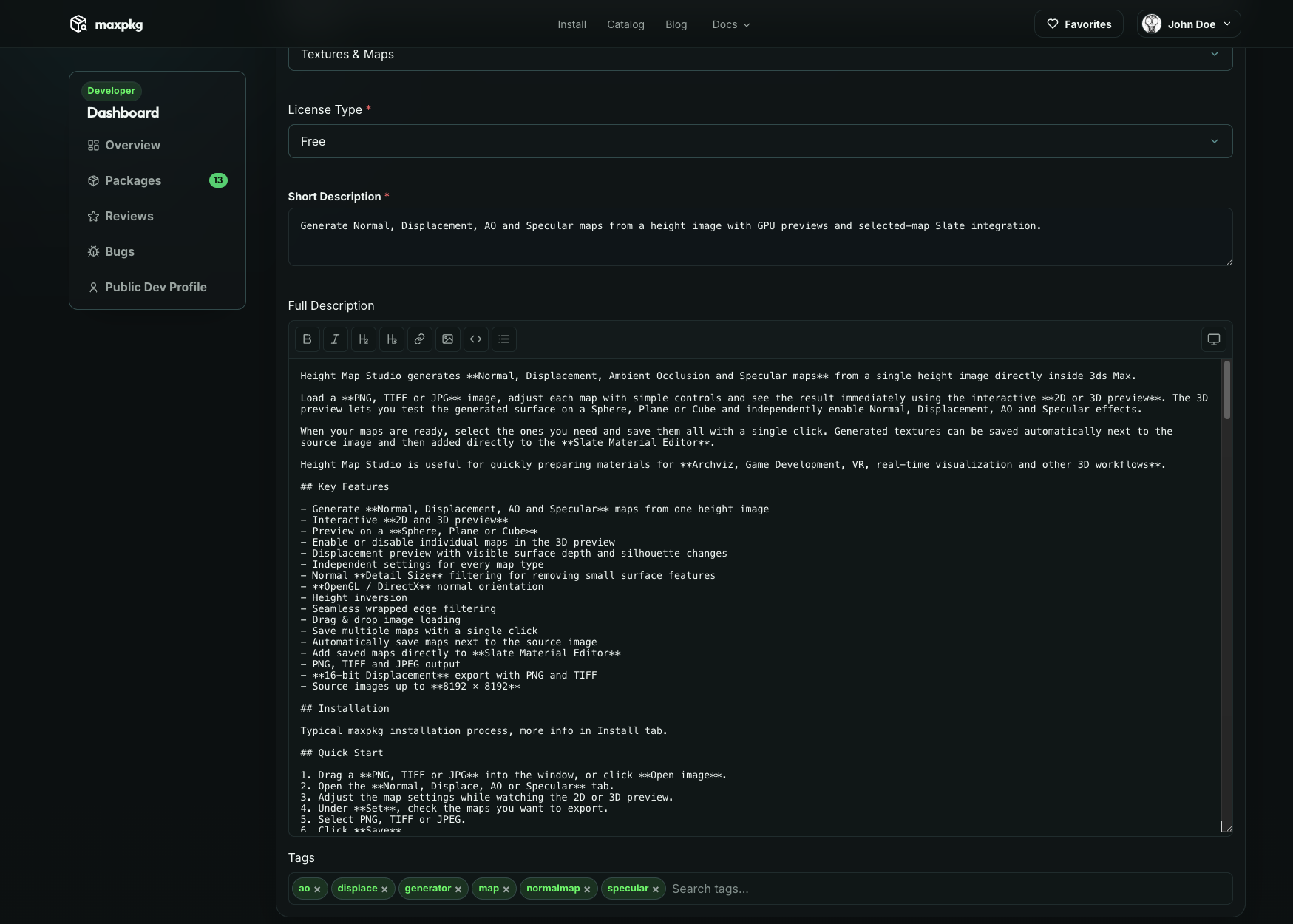
So the catalog doesn’t stay an abstract “place with scripts”, here are a few great examples. Height Map Studio creates Normal, Displace, AO and Specular maps from a single texture. It all happens without leaving 3ds Max, and it’s very fast. The textures open straight in the Material Editor.
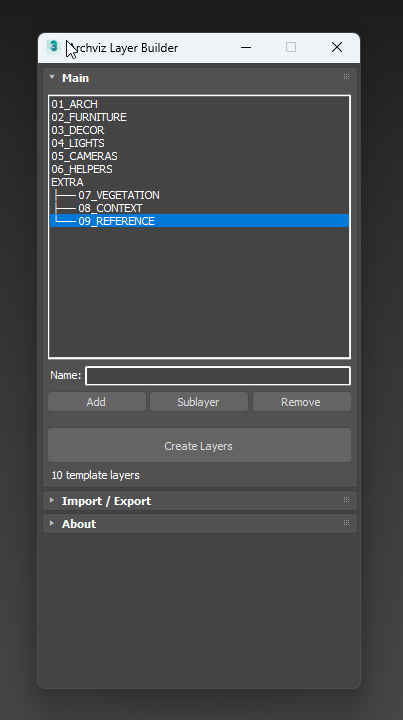
Archviz Layer Builder comes in handy if you start projects with the same set of layers. You can save a nested structure template, create missing layers in the scene and move the template to another computer via an INI file. It doesn’t sort existing objects into layers, though.
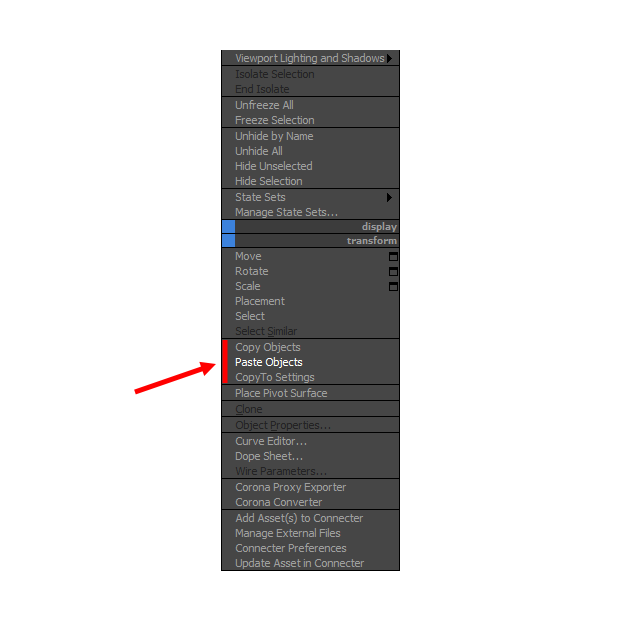
And CopyTo Pro helps you move objects, materials and other data between open 3ds Max sessions.
Found a Tool? A Second Later It’s on Your Toolbar
You can start right from a tool you like. Click Install on its page and drag the install block that appears into a 3ds Max viewport. If you don’t have the manager yet, it gets installed along with the package. This option is shown in the installation guide.
If drag and drop doesn’t work, the same window has Download Installer: download the installer and open it via Scripting → Run Script. There’s also a separate Download MZP manually option that downloads only the package itself, without the manager. And if you’d rather install the manager first and pick tools from inside it, start with the MaxPkg Manager install page. There’s also a short Watch demo there.
New Tools and Installed Ones
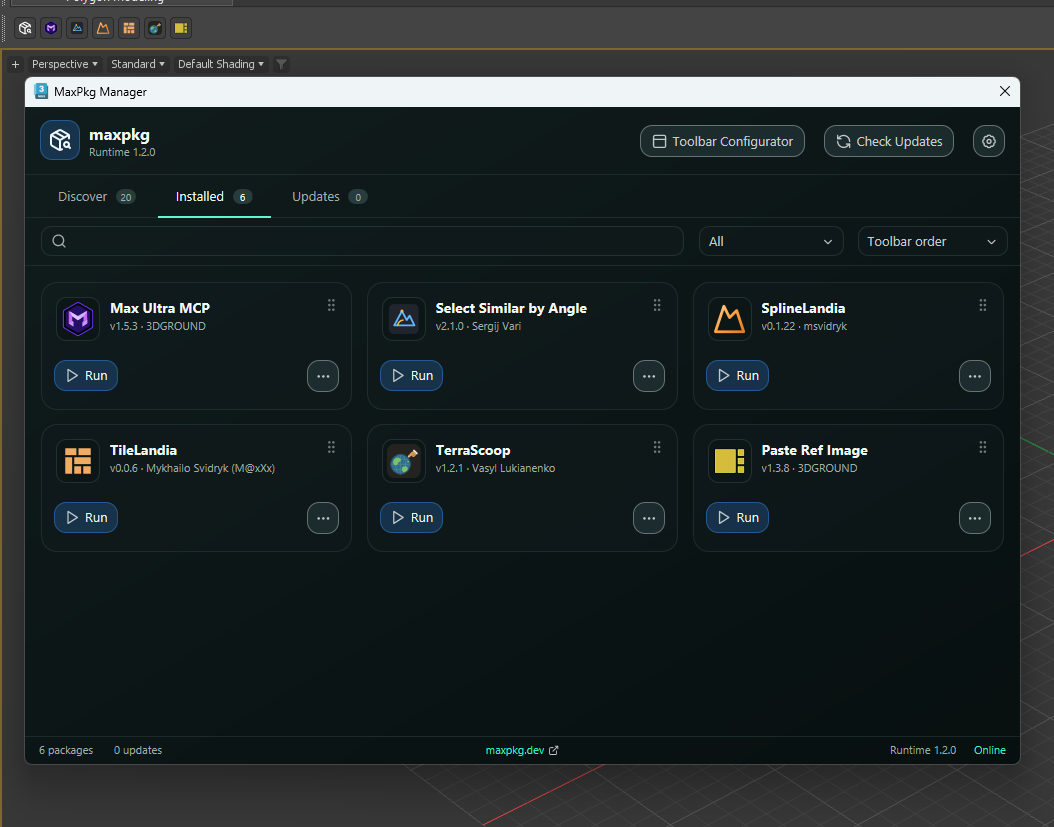
In the manager you only need to remember two tabs. Discover is for finding new packages, Installed shows the ones you already have. From there you can open the description, look at screenshots and the changelog, launch a tool or remove it. It’s a normal working routine: find it, check it out, install it, use it.
For frequent tasks there’s the MaxPkg toolbar. If the author prepared buttons for a package, they appear after installation. Tools you need once a month can stay in the manager, while the toolbar holds your everyday set. That way quick access actually stays quick.
Which commands show up depends on the package. One tool only needs a button, another needs several actions or Quad Menu items. The author sets this up when packaging. Users no longer have to dig for the category in the source .mcr to figure out what the developer had in mind.
Small Things That Make the Toolbar Nicer
- You can change the button size: large, medium, small or icons only. The extra label with the version or author can be hidden.
- Reorder buttons from Installed or right on the toolbar: hold Alt and drag a button to where you want it.
- Buttons you don’t need can be hidden. You can also turn off the toolbar itself and put commands from the MaxPkg category on your usual 3ds Max toolbars (Customize → Customize User Interface).
- To open the manager without hunting for its button, press X and type MaxPkg Manager.
One more setting comes in handy once your collection grows: in Installed you can switch from compact cards to full ones with descriptions and icons. All of this is covered in the manager guide. Small settings, but every day it means less searching and fewer extra clicks.
When you remove a package, the manager deletes its files and related buttons. And installed tools keep working without access to the website: they live on your computer. You need the internet for the online catalog, downloads and update checks. A particular script may still have its own network features. There’s more about working locally in the manager documentation.
Updates You Don’t Have to Track One by One
The author may have fixed that annoying bug ages ago, while you’re still working around it by hand because you didn’t know about the new version. Checking the websites of every installed tool gets old fast. In MaxPkg, updates are collected in one place, and there’s Check Updates to look for them.
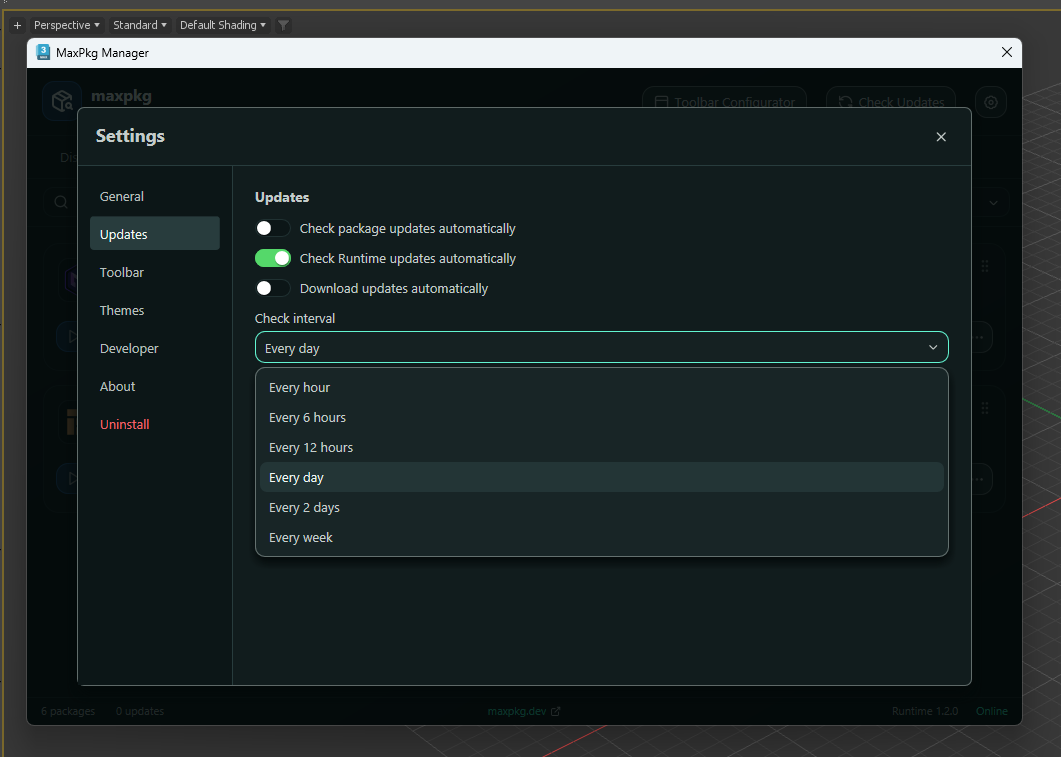
Scripts can be updated in two modes. In automatic mode, the manager checks for and installs compatible new versions on startup, but no more often than the interval you set. In manual mode, it doesn’t do anything on its own: you click Check Updates and decide when to update. You pick the mode in the welcome window or in Settings → Updates. Updates for MaxPkg Manager itself are configured separately.
I like that it’s one shared choice for all the tools in the system. You don’t have to learn yet another “updater” for every script, and developers don’t have to write one from scratch. They prepare a new package version and a description of the changes. After the pre-publication review, the release becomes available to users.
If Something Breaks, the Conversation Won’t Get Lost
One user comments under a video, another writes on social media, a third sends a screenshot in a DM. A week later the author has to remember where the bug was discussed and who promised to send a scene. For support, messages scattered like that quickly become a problem.
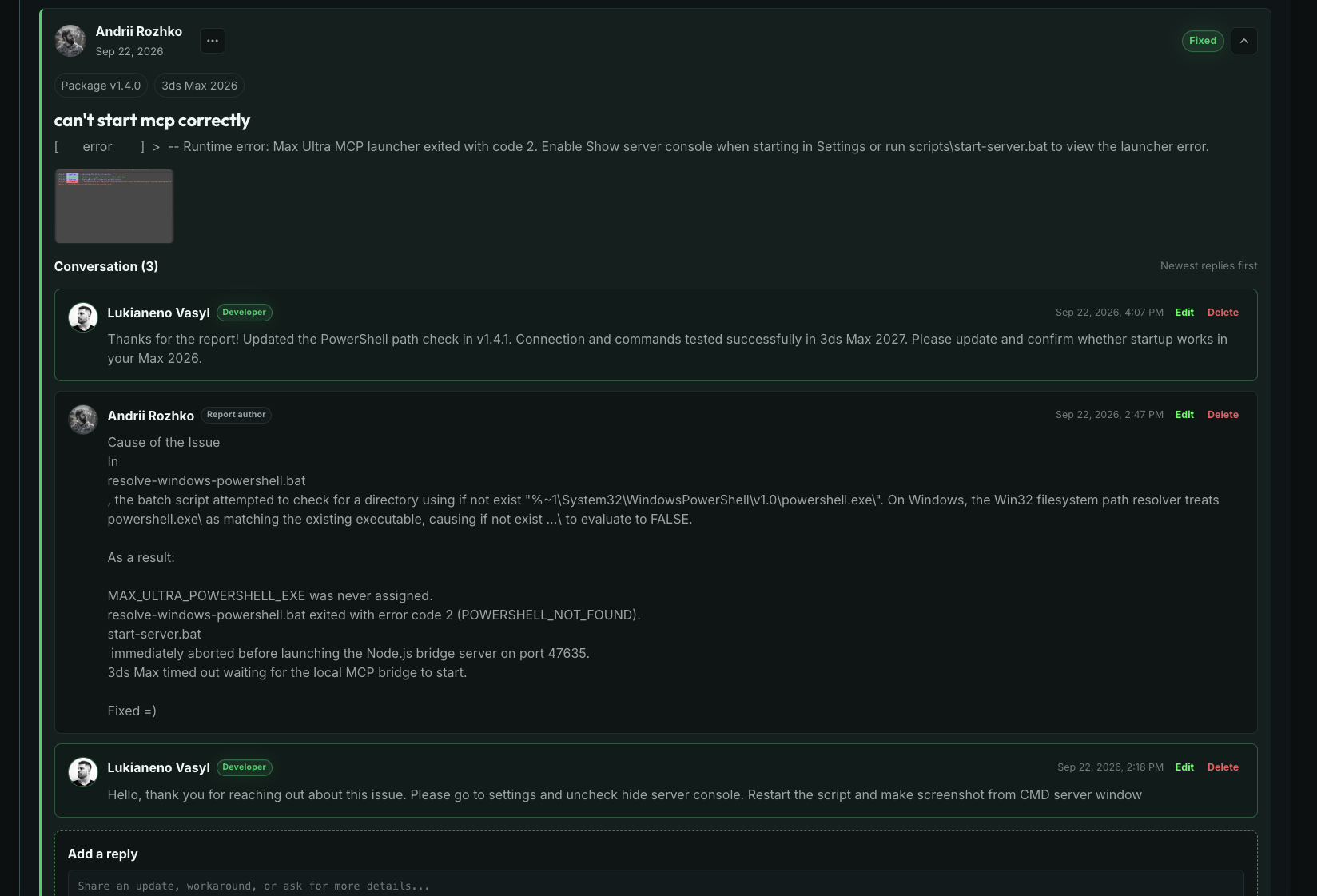
MaxPkg has a Bug Tracker on the package page for exactly this. Log in, describe the problem, attach a screenshot. The developer can ask for details, and you reply in the same report. On the Max Ultra MCP page, for example, there are Open, In progress, Fixed, Rejected and Blocked filters. They let you separate open issues from the ones already fixed.
A good report saves time for both sides. Include your 3ds Max and package versions, list the steps and explain what you expected to happen. If you got an error instead, attach its text. “I click this button with nothing selected and get this message” is far more useful than just “it doesn’t work”.
The whole conversation stays next to the specific tool. When the author gets back to the issue, they won’t have to piece the context together from chats again. And you can pick up the conversation right where you left off.
What This Changes for Script Authors
Now let’s look at it from the other side. You’ve written a useful feature, and it works in your scene. But before publishing, you still need to decide where the files go, where the window opens from, how the button appears and what happens on update or removal. The more libraries, presets and extra commands a project has, the less it looks like “just upload the .ms”.
Developers used to build their own installers a lot. 3DGROUND scripts, for example, come with an installer that lets you pick a language and adds a button to a specific spot in the interface. It does the job, but it also has to be written, tested and maintained. And the user goes through yet another separate installation process.
I’d rather spend that time on the tool itself: improving the code, fixing bugs, making the window nicer to use. A shared install and update system means you don’t have to start all of that from scratch for every project.
MaxPkg Packager: Package Your Script With Everything It Needs
To prepare a package, there’s MaxPkg Packager. Put maxpkg-packager.ms in your project folder, run it in 3ds Max and fill in the details in its window. This is where you set the file list, installation options and release info. At the end, Build MZP builds the archive for testing and publishing.
How the Tool Will Look to Users
It starts with the usual stuff: name, short description, author, license. Then you choose how the tool will be launched. The package settings let you create a 3ds Max button and show the tool on the MaxPkg toolbar. You can also set up Quad Menu commands if you need them. All of this becomes part of the package, so users don’t have to set up commands by following your separate instructions.
What Goes Into the Archive
Include the main script and everything it needs: helper code, presets, interface files. Then pick the entry point, meaning the file that should run when the button is clicked. Packager supports .ms, .mse and .py. For a Python tool, you also need to keep in mind Python support in the 3ds Max version you’re preparing it for.
A release also needs a square SVG icon, a version number, compatibility info and a changelog. Keep the changelog to the point: what was added, what was fixed, what works differently. An entry like “fixed launch with an empty selection” explains why the update matters far better than yet another “various improvements”.
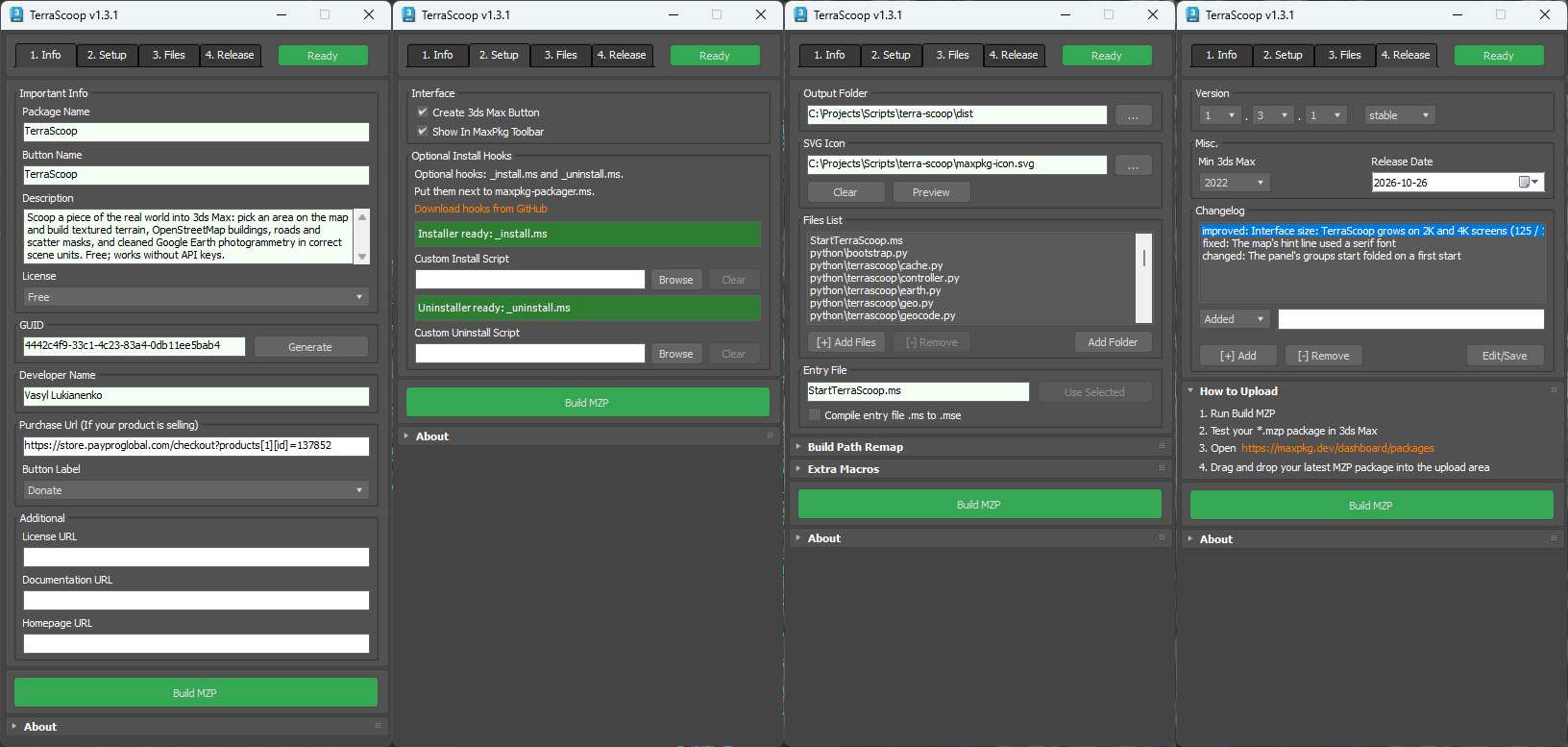
This is where small things can trip you up: the original script works because a needed file sits right next to it, but that file never made it into the package. That’s why you need to test the built MZP: installation, launching from the button, the main feature and removal. Publishing on MaxPkg uses the official Packager. I’ll come back to this check in the full walkthrough example.
What If I’m a 3D Artist Who’s Never Written a Script?
Sound familiar? There’s some repetitive task you’re sick of, and you know exactly what should happen to it. But it usually ran into “I’m not a programmer”, and learning MaxScript for one button felt like overkill. Now you can start from the other end: explain to AI what you need and gradually get a first version that actually works.
You explain what should happen, look at the result and ask to fix whatever doesn’t fit. This conversational way of writing code is often called vibe coding. For 3ds Max, it can be a really small helper: rename selected objects, set up layers, get rid of repetitive manual steps. You can start with a single function and add a proper window later.
The more specific the task, the easier it is to move forward. Which objects get processed? What should happen when nothing is selected? Which data must stay untouched? These are ordinary work questions, and an artist often answers them better than a programmer seeing their workflow for the first time.
Of course, AI’s first answer doesn’t mean the tool is done. The agent may misunderstand the requirements or write code that only works on a lucky example. But instead of having to understand everything before the first run, you get to start with a small task and learn as you test.
Max Ultra MCP: Connecting an AI Agent to Your 3ds Max
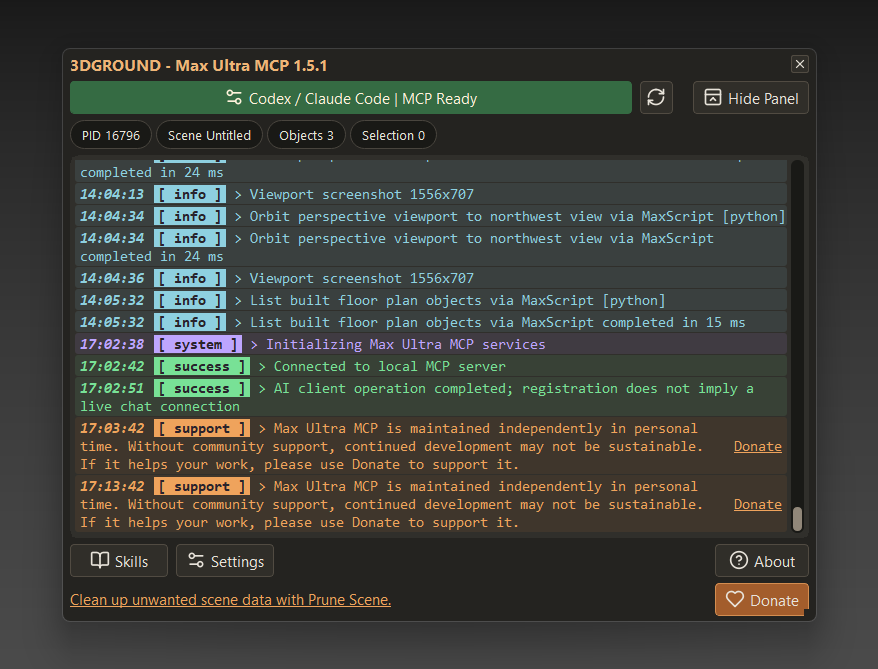
I developed Max Ultra MCP so that a compatible AI agent can work with an open 3ds Max session: get scene data, run MaxScript, read the results and take screenshots. MCP here is the link to the program. The agent makes the decisions, and Max Ultra MCP gives it the tools to act and check its work.
In a regular chat the loop is familiar: get the code, copy it, run it, see an error, send it back. If the window is broken, you also have to explain what exactly looks wrong. When connected through Max Ultra MCP, the agent can handle some of these steps itself: run the script, get the error, fix the code and check again.
For me, this ties into very practical work on MaxPkg Manager. During development you have to check not just the code but also the window inside the program: sizes, element layout, how it reacts to actions. That’s why these projects complement each other so well. One helps create and test tools in 3ds Max, the other gets them to users.
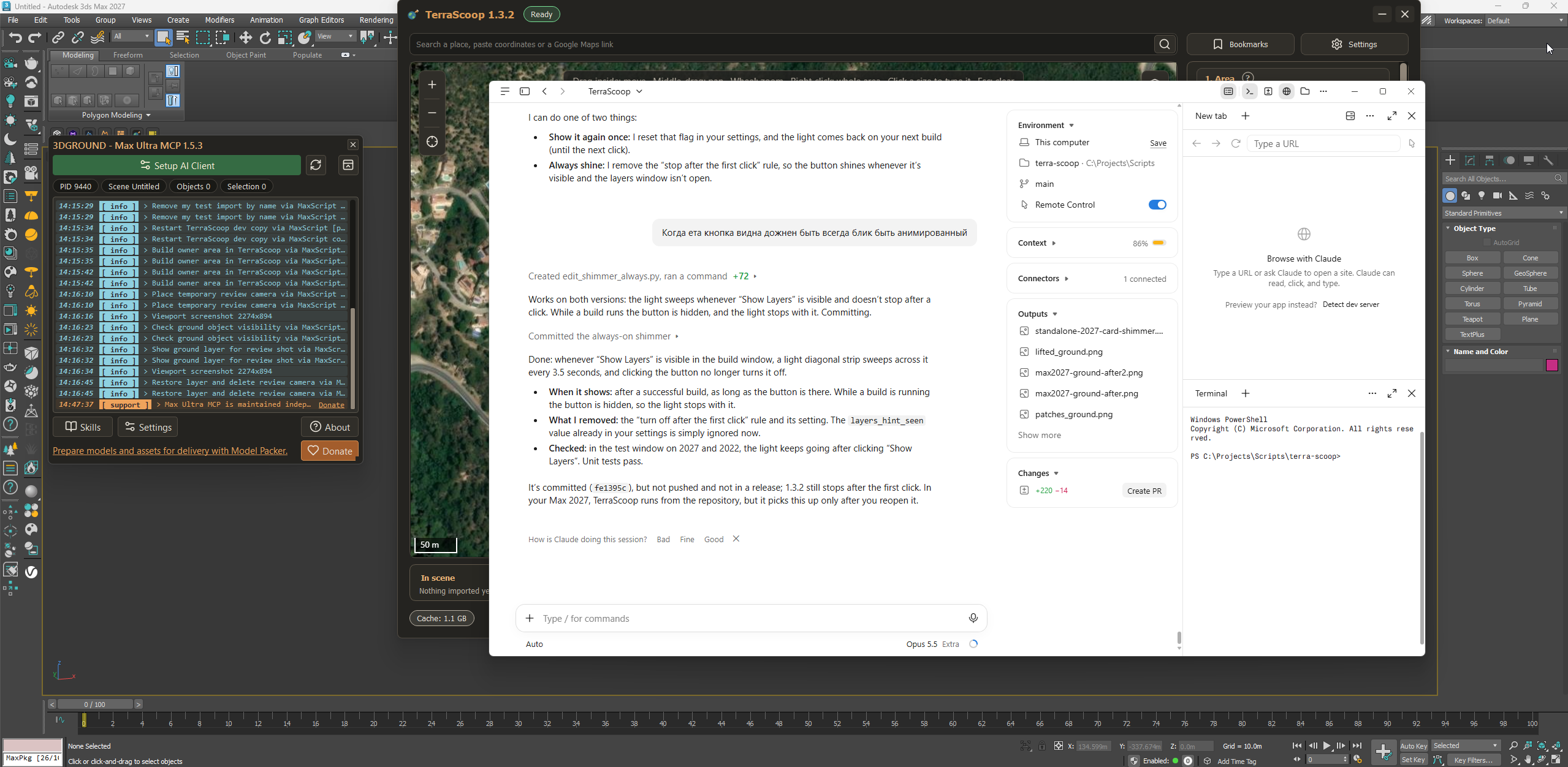
AI’s help doesn’t stop at writing the script. The Packager repository has ready-made prompts for adapting a project and for the full package preparation process. There’s also an automation interface (API): through MaxScript or Max Ultra MCP you can control settings, files, the changelog, validation and the build.
From Your Own Idea to a Package in the Catalog
Let’s take a simple case: you want to rename selected objects using your own rule. At first, only you need the tool. Then it turns out your colleagues could use the same naming scheme. Here’s how all these pieces fit into one process.
Install and launch Max Ultra MCP, then connect it to your agent. Watch the one-minute video on how to do it. After that, you can give your agent commands and explain tasks to it.
Start With One Clear Task
The task for the future tool could be phrased like this:
Make a tool for renaming selected objects in 3ds Max. The window needs a prefix and a starting number. Show the new names before applying them. If nothing is selected, display a clear message. Don’t change objects outside the selection. Build the core function first, then test it through Max Ultra MCP on a test scene.
Now you have concrete things to check: did the right objects change, does the result match the preview, is the response to an empty selection clear? If the behavior works for you, you can polish the window. If not, you’re discussing a visible problem with the agent instead of trying to design the perfect tool all at once.
Then the Package and an Install Test
Once the script works, ask the agent to help prepare the project with MaxPkg Packager: gather the needed files and make a release with the version details. The ready-made prompt on the Prepare an MZP Package page covers adapting the code, preparing the archive and the page materials. It’s a handy starting point for working on your own project.
Some decisions stay with the author. You choose the license, specify the compatibility you’ve actually tested and add a Donate link (if needed).
Next, install the built MZP via Scripting → Run Script and walk the path of a future user: did the command appear, does the window open, does renaming work, does the package uninstall? Ideally, the test environment shouldn’t have access to files from your working folder. That way a forgotten library or a wrong path shows up faster.
Package Description and Screenshots: What to Prepare Before Publishing
While the tool is still fresh in your mind, prepare a name, a short description, a feature list and instructions. AI can turn your notes and test results into clear text.
For our example, we say it straight: the tool renames selected objects, takes a prefix and a number and shows the new names in advance. One glance is enough for a user to decide whether they need this script.
Capture the real window and the actual result. For renaming, showing the object list before and after is enough; for a geometry operation, shots from the same angle help. A short video shows the sequence of steps better. AI can help with the cover and captions, but the screenshots should show what the tool really does.
Publishing and Life After It
To release it, create a MaxPkg account and a developer profile via Become a Developer. In the Developer Dashboard, upload the tested MZP: the site reads the info from the package, and you fill out the page with text and images. Then submit the package for review. Once approved, it appears in the catalog. The steps are laid out in the publishing guide.
When updating, keep the same package ID: that’s how the system recognizes it as the same tool in a new version. The updated release goes through review too. After that, users get it through the manager, and you don’t have to explain to everyone which file to download and what to replace.
After the release, questions and scenarios you didn’t anticipate will come up. That’s where Bug Tracker comes in again: clarify the problem, fix it, log the change in the changelog and prepare a new package. That’s how development, distribution and support come together in one repeatable process.
Start With One Useful Tool
The easiest way to get to know MaxPkg is to pick one task that regularly eats up your time, find a package and go through the usual path from installation to launch. You don’t need to sort through your whole old script collection for that. If this approach works for you, you’ll build up your own set over time.
Can’t find the package you need? Build your own: write the code with AI + Max Ultra MCP or by hand, and package it with MaxPkg Packager. I started all of this for one simple reason: to work on the scene and features instead of hunting for buttons and fiddling with installers.
So what in 3ds Max would you hand off to an AI helper like this first?
FAQ
1. What is MaxPkg?
2. What is a package in MaxPkg?
3. Do I need an account, and does it cost anything?
4. How do I install a package?
5. Do installed tools work offline, and what happens when I remove one?
6. Can I customize the MaxPkg toolbar?
7. How do updates work?
8. How do I report a bug in a script?
9. What do I need to prepare my script with MaxPkg Packager?
10. Can Packager add a button or Quad Menu items?
11. What does Max Ultra MCP do?
12. How do I publish my package in the MaxPkg catalog?
Latest articles


{{comment.text}}