

3ds Max Performance Issues



Introduction
Working in 3Ds Max, you may encounter slowdowns, viewport lag, long scene loading times, and unpredictable crashes.
Below is a list of common issues and practical solutions to help optimize performance.
This article deals primarily with global, scene-related issues - hardware problems, drivers, BIOS settings, etc., are outside its scope.
The typical case: everything works fine until you open or receive a scene that causes 3Ds Max to slow down so much you cannot continue working.
Note!
If you encountered issues not covered in this article, please comment how you resolved them - we'll add your recommendations!
1. Scene and Geometry
Large Scenes and Heavy Objects
Problem:
❗ Files of 1 GB or more, containing millions of polygons or thousands of objects, slow down the UI, navigation, and rendering.
Solution:
✅ Use the H key to open the object list and sort by polygon count to find heavy models. Add a Faces column via Configure Columns, then optimize or convert such objects to proxies.
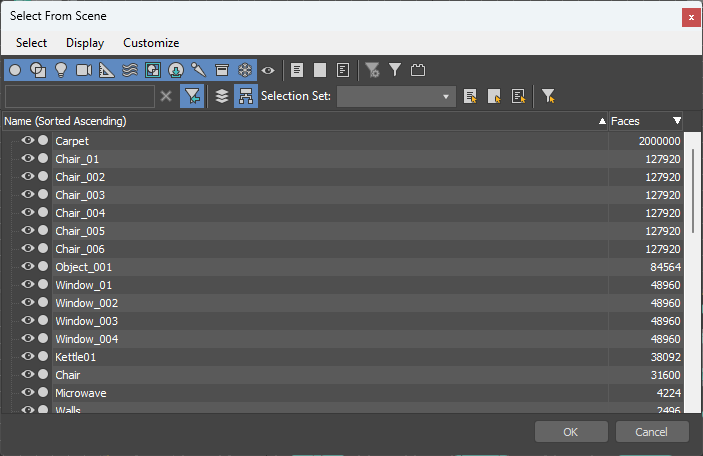
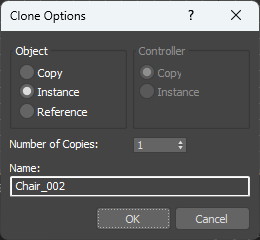
✅ When duplicating objects, use Instance mode, which references the same mesh instead of duplicating it.
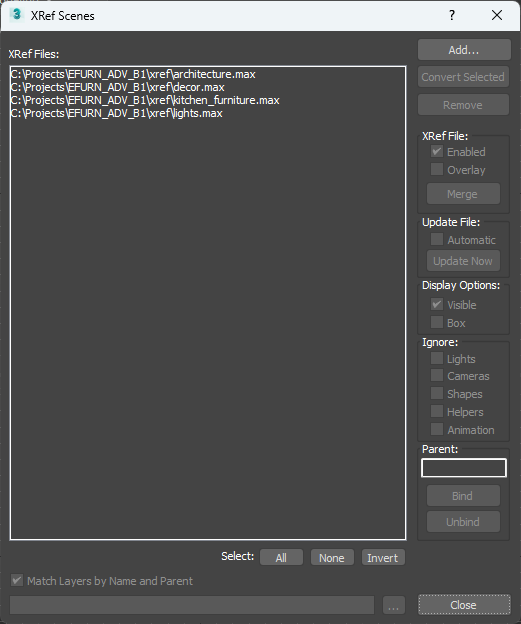
✅ Use File → Reference → XRef Scene to offload parts of the scene into separate files. This lets you quickly disable parts of the scene and allows multiple artists to work in the same project.
Create a Main_Scene.max with only the camera, lights, and render settings; split the rest into files like architecture.max, room1_furniture.max, etc.
You can Merge and Convert Selected via the XRef Scenes dialog.
Tiny Objects / Groups
Problem:
❗ Hundreds of small objects (bolts, furniture parts, decoration) slow down the scene.
Solution:
✅ Combine static elements via Attach to reduce object count. Avoid nested groups; instead, organize via layers or selection sets.
Network / Cloud Storage
Problem:
❗ Loading scenes from network drives or cloud services (NAS, Dropbox, Google Drive) severely slows opening and saving times.
Solution:
✅ Copy the project and texture files to a local SSD and work from there.
✅ Do not use synchronizing cloud folders as your working directory.
Objects Far from Origin
Problem:
❗ Scenes with huge bounding boxes or objects far from (0, 0, 0) cause artifacts, flicker, and degraded snapping precision.
Solution:
✅ Move and scale models closer to the origin. Use correct units (millimeters for interior, meters for exteriors).
Problem:
❗ Hidden or unused objects still consume memory and bloat your scene.
Solution:
✅ Save those extra elements into a separate file (especially anything not visible in camera) and then delete them from the main scene.
2. Objects & Modifiers
Long Modifier Stacks
Problem:
❗ Each modifier duplicates the mesh in memory; many modifiers increase load.
Solution:
✅ In your final version, right-click on the modifier stack and choose Collapse to Editable Mesh/Poly. Procedural splines should also be collapsed before rendering.
Dense Geometry & Displacement
Problem:
❗ High polygon counts on distant objects and displacement modifiers significantly increase render times.
Solution:
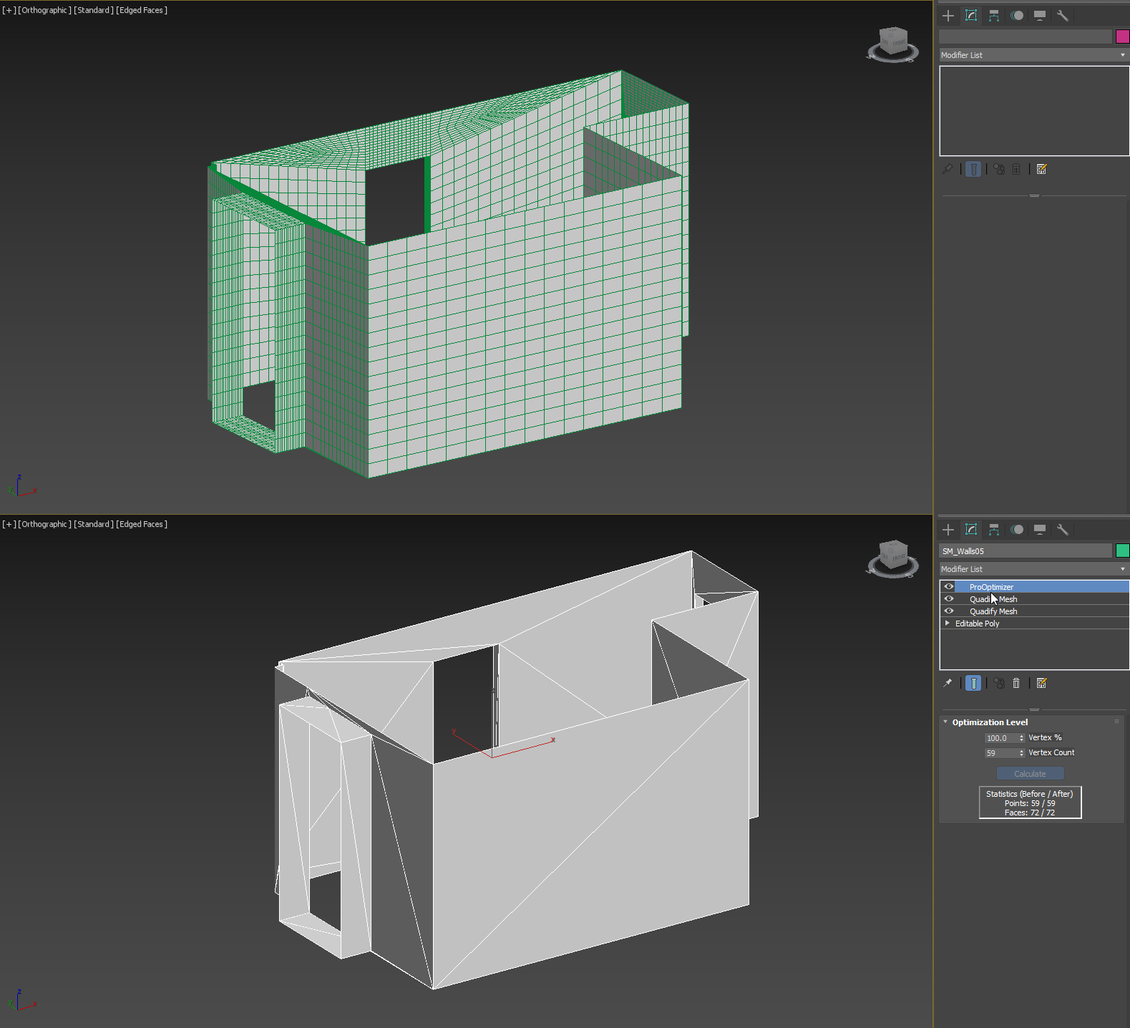
✅ Use Optimize or ProOptimizer on distant geometry to reduce polygon density.
✅ Replace displacement maps with bump or normal maps where possible.
✅ For messy CAD imports, run Quadify Mesh with Quad Size = 100%, and then apply ProOptimizer or manual retopology.
Corrupted Geometry & Blocks
Problem:
❗ CAD objects with isolated vertices, bad normals, or broken polygons degrade performance, slow renders, break Smooth Groups, and hamper export.
Solution:
✅ Use commands to remove isolated vertices and collapse stacks.
✅ Use Reset XForm, Box Trick, Detach Trick, Snapshot from the Stock Model Fixer toolset.
✅ Import objects one at a time via File → Import → Merge to isolate problem elements.
✅ Remove or remodel corrupted objects entirely.
3. Materials & Textures
Scattered / Missing Textures
Problem:
❗ Textures scattered across multiple folders or missing, with special characters or overly long paths, cause "Missing External Files" errors.
Solution:
✅ Consolidate all maps into one folder using Archive or Resource Collector.
✅ In Asset Tracking, point all textures to that folder using UNC paths instead of drive letters.
✅ Avoid Cyrillic or special characters in filenames; keep full path length under 256 characters.
Network Paths
Problem:
❗ Textures located on a NAS or server cause long load times, especially when 3Ds Max searches through all paths listed in User/System Paths.
Solution:
✅ In Customize → Configure User and System Paths, remove unnecessary paths. In an ideal setup, there are no extra paths defined, reducing wasted lookup time.
✅ Always keep textures adjacent to the scene file. Use relative paths like maps/.
✅ Even a 1 Gbps network doesn't guarantee fast texture loading - if rendering is happening simultaneously on the network, bandwidth dips may slow you down.
Oversized Textures & Risky Formats
Problem:
❗ Very high-resolution textures (8K) or unoptimized PNG/PSD formats consume massive memory and slow down performance.
Solution:
✅ Downscale textures: 8K → 4K → 2K where possible.
✅ Avoid PNG unless you need alpha.
✅ PSDs with multiple layers are better saved as JPG (Standard, not Progressive).
✅ Do not use GIF for textures - it can cause render freezes.
✅ In viewport settings, don't push texture display resolution beyond 1024-2048 px; using 4096px causes loading lag because textures are stored uncompressed and saturate VRAM.
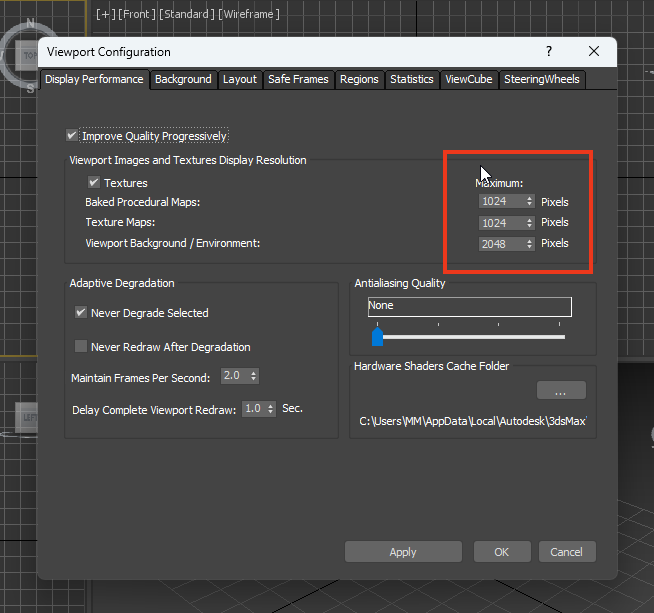
Recommendations:
👉 Use Prune Scene by 3DGROUND to clean viewport cache.
👉 Use the JPG-OPTI (.bat) script: a toolset that batch-optimizes textures without quality loss. (GitHub: MastaMan/JPG-OPTI)
Instruction JPG OPTIDownload JPG OPTI
Displacement in Materials
Problem:
❗ Displacement maps drastically increase rendering burden.
Solution:
✅ Use bump or normal maps instead, and restrict high-detail geometry to only where absolutely needed.
4. Plugins, Scripts & Viruses
Conflicting / Outdated Plugins
Problem:
❗ Some plugins slow scenes or cause instability.
Solution:
✅ Temporarily disable or update suspicious plugins. Turn off "Load plug-ins when used" so that problematic modules are easier to identify.
Auto-loaded Scripts
Problem:
❗ Scripts that auto-run on startup (e.g. viewport polygon counters) slow down navigation.
Solution:
✅ Inspect the scripts/startup folder and disable or delete unneeded scripts.
Viruses & Malicious Macros
Problem:
❗ Some MAXScript viruses (like ALC) inject hidden nodes and break scene integrity.
Solution:
✅ Use Prune Scene from 3DGROUND with Active Protection enabled, then resave the cleaned scene. Avoid downloading suspicious models and regularly scan your files.
5. Autosave & Loading
Problem:
❗ Frequent autosaves slow performance, especially with files larger than 5 GB.
Solution:
✅ Increase autosave intervals to 10-30 minutes.
✅ Cancel autosave by pressing Esc.
✅ Turn off "Compress on Save" for large scenes (compression may corrupt).
✅ Move the autoback folder to a fast drive (preferably SSD).
✅ Do not store active scenes on NAS - work locally.
6. UI & Viewport
ViewCube & AutoCam
Problem:
❗ In heavy scenes, the ViewCube and AutoCam functionality slow down navigation.
Solution:
✅ Disable the ViewCube via Alt+Ctrl+V or Views → ViewCube → Configure. Fully deactivate AutoCam by renaming the file AutoCamMax.gup.
High-Resolution Displays & Drivers
Problem:
❗ 4K displays or multiple monitors cause redraw lag; improper drivers lower FPS.
Solution:
✅ Lower display resolution to 1080p or 2K.
✅ In Preferences → Viewport, ensure you use the Nitrous Direct3D driver.
✅ Use Adaptive Degradation (key O) to temporarily reduce detail and maintain fluid navigation.
✅ In Object Properties, disable Backface Cull if it's causing viewport lag.
Open Panels & Real-time Overlays
Problem:
❗ Keeping Layer / Scene Explorer open forces constant updates, slowing down the UI; in-viewport polygon counters or scripts also slow performance.
Solution:
✅ Close these panels when not needed.
✅ Disable stats or remove scripts/plugins that render overlays in the viewport.
Unused Data
Problem:
❗ Legacy environment effects (Fire, Fog, etc.) degrade performance.
Solution:
✅ In the Environment window (key 8), delete unused effects. If many accumulate, use Prune Scene with "Junk Effects" cleanup.
7. System & Hardware
Storage & Memory
Problem:
❗ Slow HDDs, insufficient RAM, or low free disk space slow overall performance.
Solution:
✅ Use SSDs for your project, and ensure ample RAM and swap space.
Antivirus & Background Processes
Problem:
❗ Windows Defender or other antivirus software may scan .max files and textures aggressively, causing lag.
Solution:
✅ Add 3Ds Max and your working directories to antivirus exceptions or temporarily disable real-time scanning.
CPU Settings & GPU Drivers
Problem:
❗ Enabled Hyper-Threading/SMT sometimes worsens performance; outdated GPU drivers cause lag.
Solution:
✅ Try disabling Hyper-Threading/SMT if not critical for rendering. Always update your GPU drivers to the latest version.
Qt Variables
Problem:
❗ Some hardware setups suffer slower UI performance due to Qt rendering.
Solution:
✅ Set system environment variables: QT_OPENGL = Angle and QT_ANGLE_PLATFORM = warp/d3d9/d3d11. Then reboot the computer.
General Recommendations
Keep the scene clean. Regularly clean junk and viruses via Prune Scene; fix broken geometry using Stock Model Fixer.
Organize textures. Store all maps near your project (e.g. in maps/). Use Archive or Resource Collector. Optimize textures: convert to JPG, reduce resolution.
Manage paths. Remove unused entries in User/System Paths. Avoid network or cloud paths for textures; when using cloud storage, copy the project locally to SSD.
Leverage Proxy & XRef. Use proxies or XRef to lighten scenes and toggle parts off temporarily.
Optimize geometry. Avoid extremely dense models. Use ProOptimizer, Retopology, or Quadify Mesh wisely.
Tune 3Ds Max settings. Don’t push extreme values (e.g. ultra texture resolution in viewport).
Invest in hardware and software. Use fast SSDs, sufficient RAM, up-to-date GPU drivers, and keep 3Ds Max patched.
Conclusion
Performance optimization in 3Ds Max is a multifaceted task. Large scenes demand discipline in file and object organization, judicious use of modifiers, and careful handling of textures and plugins. By working locally, using instances, collapsing stacks, controlling texture sizes, and disabling unnecessary plugins, you can significantly speed up navigation, reduce render times, and stabilize the program.
If you still experience odd slowdowns, scan for malicious MAX scripts, update drivers, check display and antivirus settings. In extreme cases, share the issue - we'll help you find a custom solution.
FAQ
1. What is this article about?
2. Why does 3ds Max become slower over time?
3. Is slow performance always caused by weak hardware?
4. Can scene size affect performance?
5. What is “scene junk”?
6. Can corrupted geometry slow down 3ds Max?
7. Do third-party plugins affect performance?
8. Can script viruses cause performance problems?
9. Can cleaning a scene improve performance?
10. Why can opening a scene take a long time?
11. Do textures affect viewport performance?
12. Can too many modifiers slow down a scene?
13. Should scenes be checked regularly for problems?
14. Can performance issues be prevented?
15. Is this article suitable for beginners?
16. Can 3ds Max be significantly sped up without upgrading hardware?
Latest articles


{{comment.text}}