

A Hidden Tool in V-Ray - Quick Denoise (VDenoise)



Introduction
Did you know that V-Ray comes with a separate application for image denoising that works extremely fast?
Sometimes you need to reduce noise in an image - it can be a texture downloaded from the internet or a finished render that turned out too noisy for some reason.This is exactly where VDenoise becomes very useful.
What Is VDenoise and Where to Find It
vdenoise.exe is shipped together with V-Ray, so you need to have V-Ray installed in order to use it.
You can find the executable at the following path (note that XXXX stands for your 3Ds Max version):
VDenoise can work in:
- GUI mode
- Command-line mode (CLI)
How to Use VDenoise
Run vdenoise.exe and you will see a very simple and clear interface.
Note!
Sometimes the application may not start on the first try — if that happens, just launch it again.
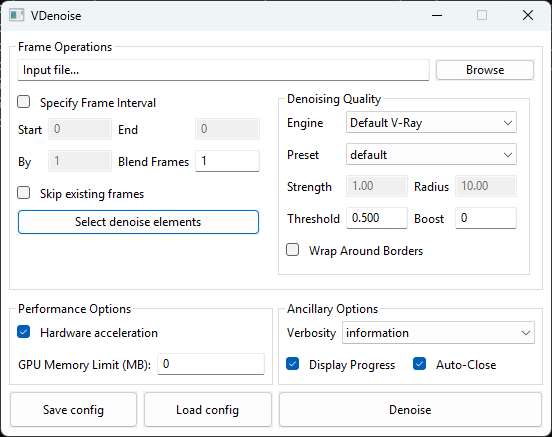
Basic Settings
In most cases, the default settings work perfectly fine.
If the image is very noisy, you can increase the Threshold value to around 0.5.
Workflow
- Select your render or texture using Input File…
- Click Denoise
- Wait until the process is finished
You can also:
- save your settings using Save config
- load them later using Load config
My Use Case
I personally used VDenoise to clean up baked AO renders.
I rendered AO using Corona Renderer — simply because it was more convenient for me.
The renders were made with only 1 pass, so the result was very noisy.
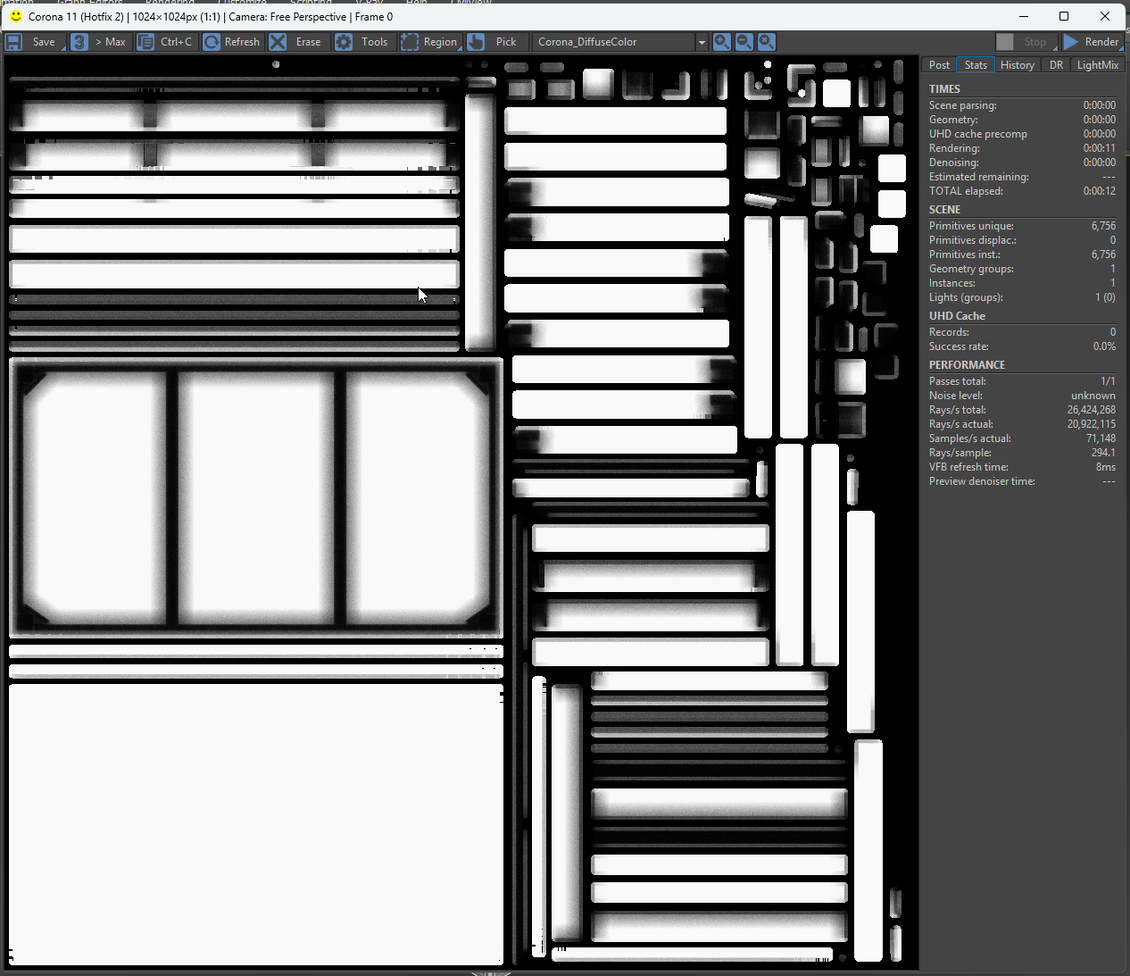
On the original image, the noise is clearly visible.
After processing the image with VDenoise, it becomes clean and smooth.
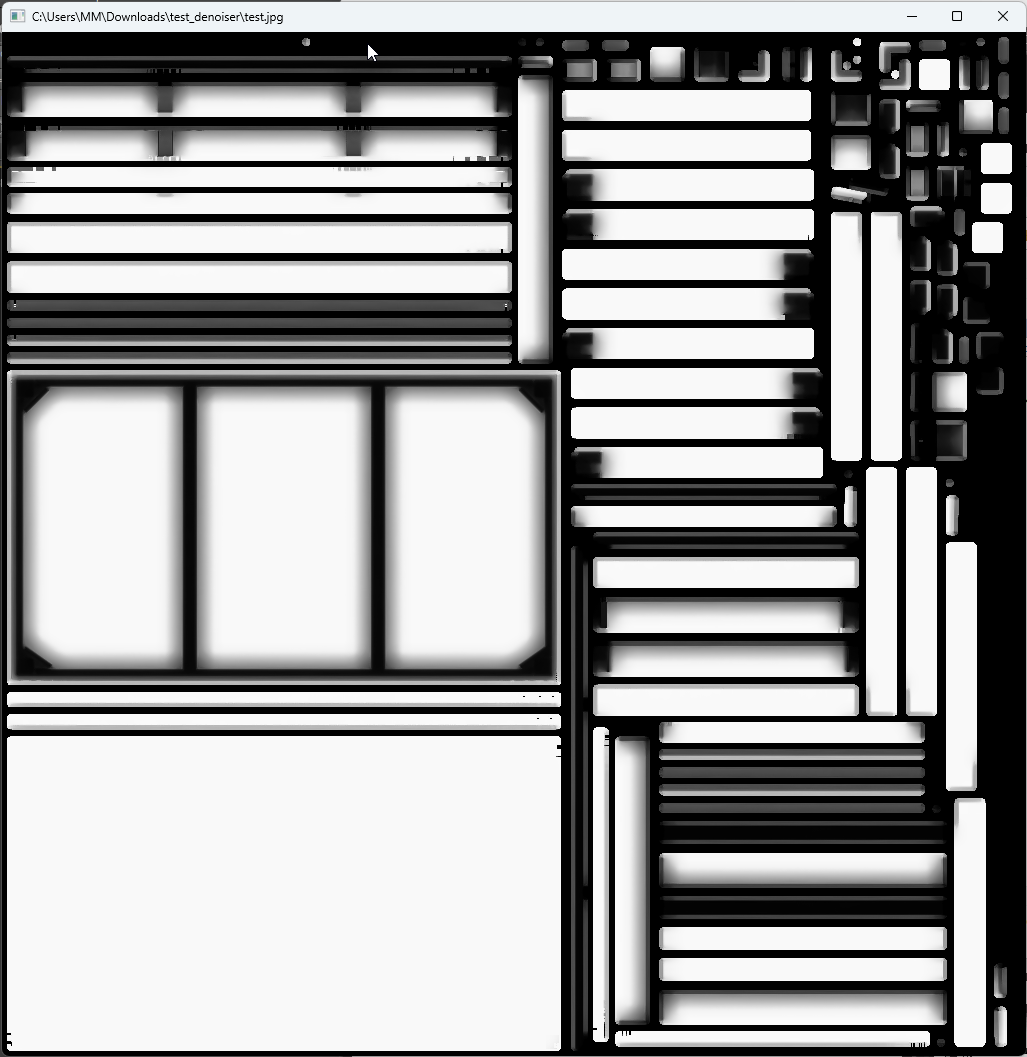
As a result, I get perfect baked AO shadows in about 10 seconds.
How to Automate VDenoise (vdenoise.exe)
To automate the process, I created a simple BAT script (with the help of ChatGPT) that batch-processes all images in a folder.
What You Need
- vdenoise.xml — required
- a BAT file
- all images placed in the same folder
The vdenoise.xml file must be saved beforehand using Save config in the VDenoise interface.
Note!
The BAT file and vdenoise.xml must be located in the same folder as the images.
How It Works
- the BAT script automatically detects the installed VDenoise version for your 3Ds Max
- if V-Ray is not installed, an error message will be shown
- all images with the following formats are processed automatically: *.jpg, *.jpeg, *.png
After that, you just run the BAT file — and the entire folder is processed without any manual work.
Conclusion
VDenoise is a fast, simple, and underrated tool that works great not only for renders but also for any kind of images and textures.
I hope this article was useful.
Feel free to share your own VDenoise use cases in the comments!
FAQ
1. What is this article about?
2. What is vdenoise?
3. What is vdenoise used for?
4. How is vdenoise different from the built-in V-Ray Denoiser?
5. Which file formats does vdenoise support?
6. Can I use vdenoise without launching 3ds Max?
7. Can I denoise old renders?
8. Can vdenoise improve workflow efficiency?
9. Can vdenoise be automated?
10. Is vdenoise suitable for render farms?
11. Can vdenoise process multiple files in a batch?
12. Do I need to launch denoising manually for each file?
13. Does vdenoise modify the original render?
14. Is vdenoise suitable for studio production?
15. Do I need programming skills to use vdenoise?
16. Why do many V-Ray users not know about vdenoise?
Latest articles


{{comment.text}}